
Background workers of your projects
Every background program of a project in one list, with its state, and changes only on your click.
A project often grows programs that work without anyone watching: a scheduled task that builds every night, a server kept alive by pm2, a script that starts when you sign in to Windows. Sessions make these, and a month later nobody remembers which project they belong to. The Workers window finds them on a computer and lists them by project, with their state.
The studio only reads this list on its own. It changes a worker only when you click, and it shows you exactly what it will do first.
Open the list
Select a project and click Workers, next to New session and Processor and memory. Windows and pm2 are asked, and this takes a few seconds. The window then says when it looked. Click Look again to ask again. The studio looks when the window opens and when you click, never on a clock.
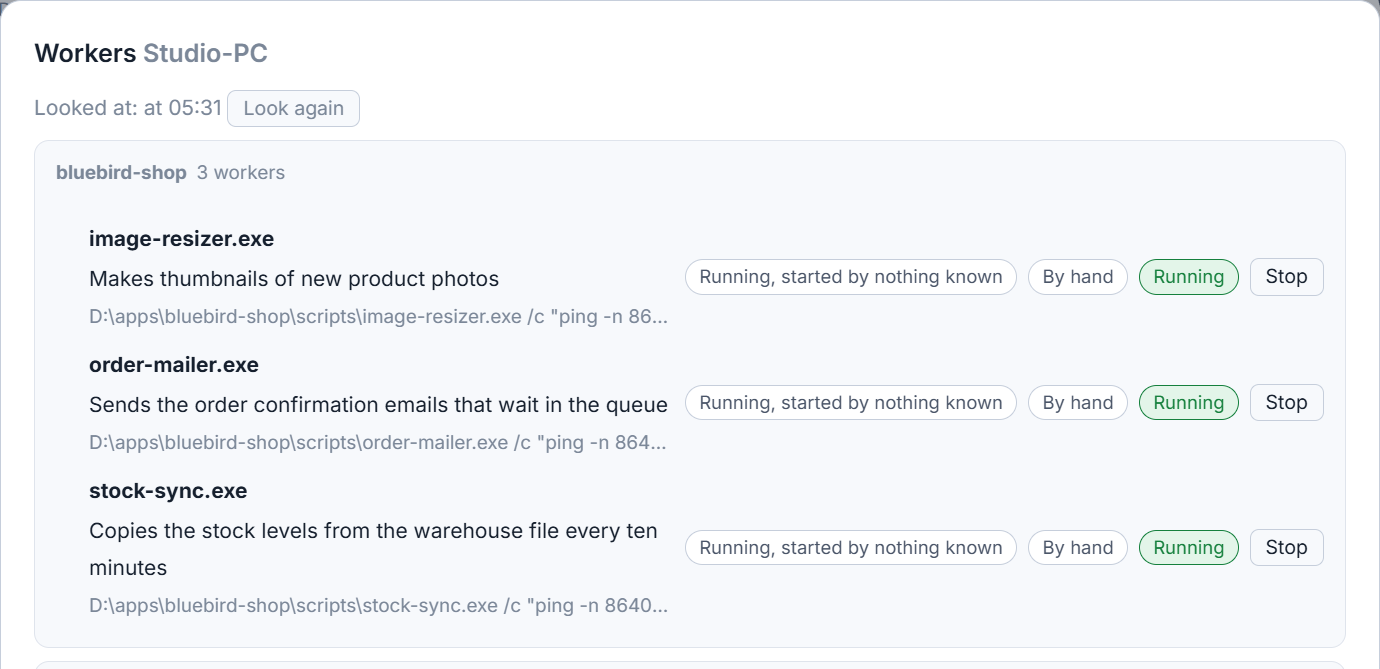
Workers are found from four places: the scheduled tasks of Windows (the ones outside Microsoft's own), the Run keys and Startup folders that start programs when you sign in, the programs pm2 runs, and programs running now whose command names a file of one of your projects. Each is grouped under the project whose folder its command, arguments or working folder names. The rest are under Of no project. The group of the project you opened it from comes first.
pm2 is read only while its background process is already alive. Asking a pm2 that is not running would start one, and that would change your computer. On a Mac, only pm2 programs are read for now.
Read a row
A row shows the worker's name, what it does when a session wrote that down, and its command. Chips say where it comes from (Scheduled task, pm2, Run key of Windows, Startup folder, or Running, started by nothing known), when it starts (for example When Windows starts or Every day), and its state:
- Running or Turned off.
- Ended with an error last time, with the code Windows gave.
- Did not start after Windows started.
- Last run with a time, or Never ran yet. For pm2, how many times it started again.
A worker that no session registered carries an Unknown chip. Groups with a worker in trouble show a red count.
Run, stop, turn off
The buttons on a row depend on its kind: Run, Stop, Turn off, Turn on, Take away automatic start and Put automatic start back.
- Click the button you want. Nothing happens yet.
- Read the box that opens. It says what will change in plain words, how to undo it, and under Exactly this is run the real command.
- Click Yes, do it, or No to leave everything as it was.
Turning off a scheduled task does not delete it. It stops it from running at its time and when Windows starts. A few actions belong to every user of the computer, and the box says Windows may refuse them without an administrator.
A check after Windows starts
Five minutes after Windows has started, the studio looks at the workers that were supposed to start with Windows or at sign-in, and at the pm2 programs that should be online. For each one that did not start, one alert appears in the column of alerts: The worker "name" did not start after Windows started. Click it to open this window.
Have sessions record their workers
At the bottom of the window, Tell the sessions to register every worker they make is a tick box that is off at first. When it is on, new Claude Code sessions are told to write each background program they set up into .aigopilot/workers.json in the project's root, with its exact name and one sentence about what it does. That is where the line under a worker's name comes from, and it is what lets the studio file the worker under the right project.
Sessions that are already open do not get the instruction, and Codex sessions do not get it yet. The instruction is shown in full next to the tick box before you accept it. To see what a session itself takes from the machine, open Processor, memory and programs a session left behind.
Small tips
Read the exact command before you say yes
Every action opens a box with the command that will be run and a line on how to undo it. Read that line first; some actions cannot be undone and the box says so.
Press Look again after changing something outside
The list is read when the window opens and when you click Look again, never on a clock. If you changed a task in Windows yourself, click Look again to refresh.
Make sessions register what they set up
Tick Tell the sessions to register every worker they make. New Claude Code sessions then write each background program into a workers file in the project, so it is named and filed under the right project.
Questions
Does the studio change my scheduled tasks by itself?
No. It only reads them. Any change waits for your click, and before it the studio shows what will change, how to undo it and the exact command.
Why does a worker say Unknown?
No session registered it in the project's workers file. Switch on the tick box that tells sessions to register what they make, and new Claude Code sessions will start recording theirs.