
The alerts column and the news
One column that gathers everything the studio noticed while you were busy, most serious first.
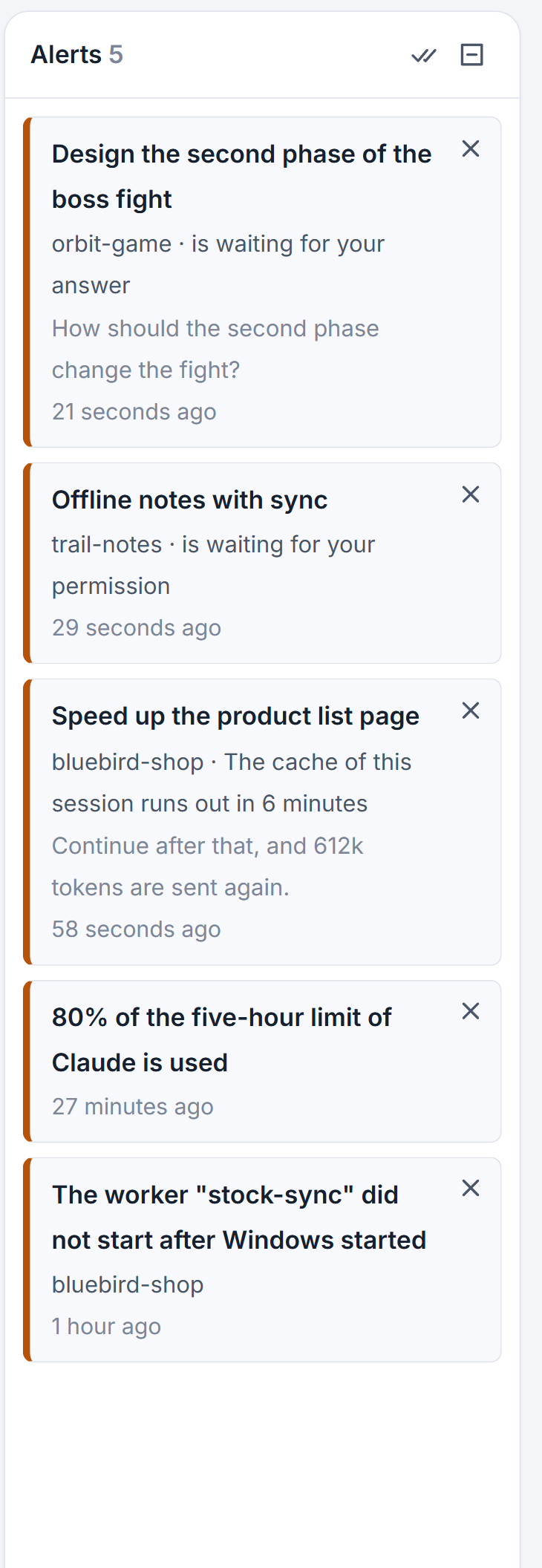
The Alerts column is the studio's list of things it noticed and thinks you should know about: a session that finished, a question waiting for your answer, a limit that is nearly used up, a sign-in that stopped working. It stands at the top of the right edge, above Waiting for you, and the number beside its title counts the alerts you have not looked at yet.
You do not need to watch it. It is there so that you can come back after an hour away and see in one place what happened while you were gone.
What raises an alert
An alert is made when something changes. Old history that the studio reads again at startup does not make one. These are the main groups:
- Sessions. A session waits for your answer or your permission, finished its work, stopped midway, or reached the usage limit of its account.
- Usage and money. An account used 80 or 95 percent of a limit, a limit jumped at once, an account went over to paid extra usage, a session went over its budget, a paid key is out of credit or does not work, or one session used far more in an hour than it usually does.
- The cache. The cache of a finished Claude session runs out in ten minutes. See the cache countdown.
- Your computer. A session's memory went above the limit, too many programs of one name are open under one session, or programs were left behind by sessions that ended. A background worker did not start after Windows started.
- Connections. Nobody is signed in to Claude Code, Codex or Grok any more, a mailbox cannot connect, or the Telegram line is down.
- Your own things. A reminder came due, or a bug report arrived in a project's mailbox.
Whatever you switch off for Windows notices, the alert is still made. The column is the place that always has the full list.
Severity and order
Each alert has one of four levels, shown by the color of its left edge: Critical (red), Warning, Good news and Note. New critical alerts stand first. Below them the newest comes first. A session that stopped midway is critical, a session that waits for you is a warning, and a session that finished is good news.
Read, open and close
- Click an alert. It opens what it is about: the session, or the window that fits it. A memory alert opens Processor and memory, a worker alert opens Workers, a reminder opens Reminders, a sign-in alert opens Accounts, and a limit alert opens the usage page.
- The alert is now marked seen, and its title turns lighter.
- Click the cross at its right edge to close it, or the check icon in the column header, Close every alert, to close all of them.
Many alerts close by themselves. One that told of a state of a session closes when that state is over, so the "waiting for your answer" alert goes away once you answer. A sign-in alert closes when the sign-in works again.
The same trouble is one alert, however often the studio finds it. A line such as "3 times" under it says how many times it was found again.
Alerts from other computers
If you work on a Mac or a second PC through the studio, the alerts of that computer arrive in the same column, marked with its name and color. Clicking one opens the thing there. Working on another computer explains how those computers join the studio.
Announcements from the site
Announcements are not alerts. When the studio starts, it looks once at a short feed on aigopilot.com. If there is a notice you have not seen, it appears as a small window with a picture, a few words and two buttons, Not now and Learn more. Each announcement is shown once. If the feed cannot be reached, nothing appears and the studio starts as usual.
Small tips
Close every alert with one click
The check icon in the header of the Alerts column, named Close every alert, closes all of them at once, including the alerts of other computers.
Fold the column and keep the count
Fold the Alerts column to a strip at the right edge. The strip keeps a bell with the number of new alerts, and the number turns red when a new critical one is there.
Read the repeat count under an alert
The same trouble is one alert however often it is found. A line such as 3 times under it tells you how many times it came back, so you can tell a one-off from something that keeps happening.
Questions
What is the difference between Alerts and Waiting for you?
Waiting for you lists the sessions and changes that need a decision from you now. Alerts is a record of events, including ones that need nothing from you, such as a session that finished.
Why did an alert disappear on its own?
An alert that told of a state of a session closes when that state is over. A sign-in alert closes when the sign-in works again, and a Telegram alert when the line is back.