
Reminders for things only you can do
A short list for the things no session can do for you, with due ones brought to the alerts column.
Some things in a project only you can do: create an account, answer a person, approve a payment, press a button in a website that no session can reach. Reminders is a short list for exactly those, kept inside the studio next to your projects. When one comes due it stands in the column of alerts, so it does not depend on you remembering to open the list.
The list belongs to the computer you are sitting at. Reminders are not shared with the Mac or second PC you may have added.
Make a reminder
- Click Reminders in the top bar. The chip also shows how many are open, for example Reminders 3. It turns red when one is due.
- Type the task into the field that says A new one.
- Optional: pick a day in the date field, and a project in the drop-down that starts at No project.
- Click Add (or press Enter in the text field).
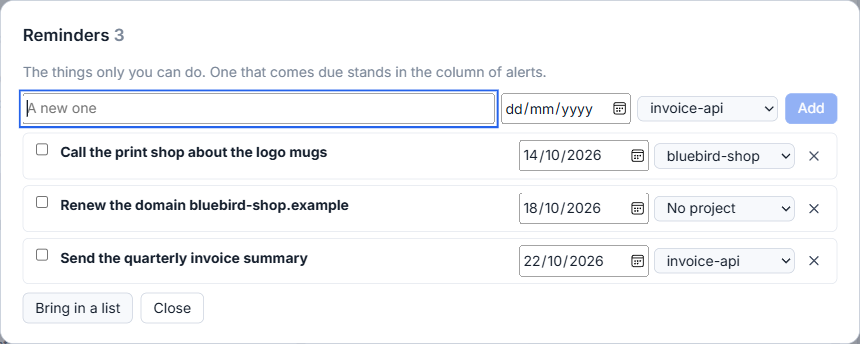
A reminder with no day never comes due. It just stays on the list until you tick it done. A reminder with a day is due from the start of that day.
Change one in place
Everything in the list is edited where it stands. Click the text to change it, pick another day or project in the fields on its right, tick the box on its left when it is done, or click the cross (Take away) to delete it. The first line of the text is shown in bold. Any lines under it are shown as a quieter note.
Finished reminders fold away into one line, Done with a number. Click it to see them again.
Bring in a whole list
If you already have a list somewhere, for example one a session wrote at the end of its work, you can add it in one step.
- Click Bring in a list.
- Paste the text.
- Click Bring it in.
Every line that begins with a number and a full stop is one reminder, and the lines under it belong to it. A reminder whose text is already on the list is not added again. The studio says how many it added.
What appears when one is due
A due reminder gets a red Due mark in the list. It also makes one alert in the column of alerts, headed "This is due", with the text of the reminder under it and the project it belongs to. The alert is made once for the day the reminder names. A click on it opens the list.
If you connected a Telegram bot, the same reminder also arrives there, as "Reminder:" and its text. See Alerts to your own Telegram bot.
When a connection stops working
The studio also warns you about two things that only you can fix. When nobody is signed in to Claude Code, Codex or Grok any more, an alert says which one, and it closes by itself when the sign-in works again. When another computer of yours stops answering, it turns pale in the Computers window and the projects on it say that what you see is the last thing read from it. The article A computer is out of reach covers what to do then.
Small tips
Paste a numbered list in one step
Click Bring in a list and paste text where each item starts with a number and a full stop. Each item becomes a reminder, lines under it become its note, and items already on the list are skipped.
Write the title on the first line
The first line of a reminder is shown in bold and any lines under it as a quieter note. Click the text to edit it where it stands.
Watch the red chip in the top bar
The Reminders chip in the top bar shows how many are open and turns red when one is due, even with the window of the list closed.
Questions
Are my reminders shared with my other computers?
No. The list belongs to the computer you are sitting at. Reminders do not travel to a Mac or a second PC that you added.
When does a reminder come due?
From the start of the day you gave it. A reminder with no day never comes due and just stays on the list until you tick it done.