
The list of what is waiting for you
One column at the right edge holds everything that needs you, from every project and every computer.
When several sessions run at once, the one that needs you is never the one you are looking at. AigoPilot keeps a list of exactly those sessions in one place: the Waiting for you column at the right edge of the window. A session lands there when it asks a question, asks permission to do something, or finishes while you were looking elsewhere. Click it and the studio takes you to that session.
The same count is in the top bar, as "N sessions working, N waiting for you", and on each project's card.
What is in the column
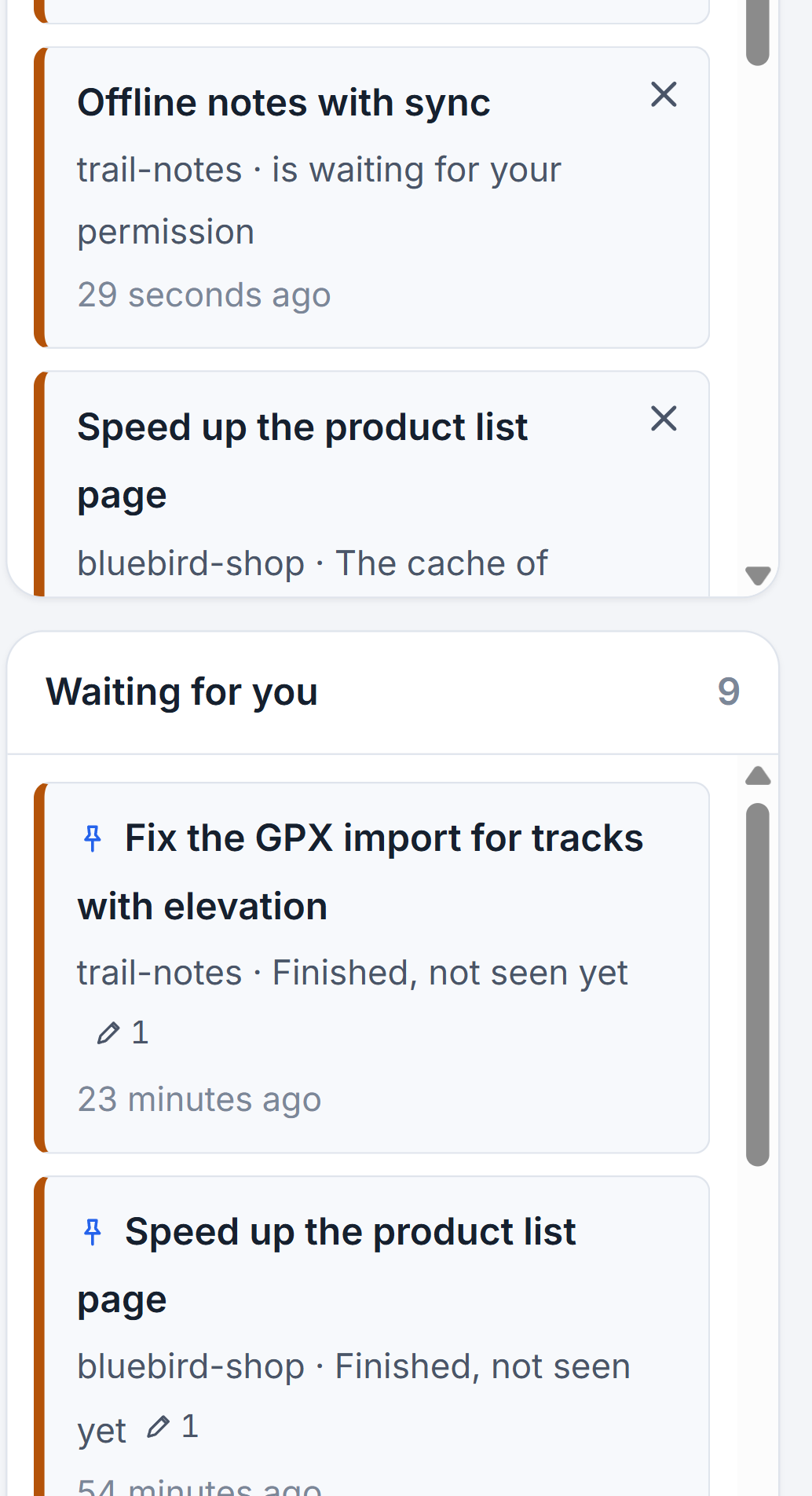
The right edge has two parts, one above the other. Alerts comes first and holds news about your machine, your limits and your mail; it has its own page, The alerts column and the news. Below it is Waiting for you, followed by the number of items.
An item is a session in one of four states: waiting for your answer, waiting for your permission, may be waiting for your permission, or finished and not seen yet. The nine session states explains each one. Sessions of every project on every computer of your studio are in the one list, and an item from another computer carries that computer's name.
Each item shows the session's name, its project, its state and how long ago it last did something. A pin before the name means you pinned the session. A small pencil with a number says how many files the session has written. A session you ran outside the studio, in VS Code for example, says so on its row. The newest item is at the top, and pinned sessions stand above all the others.
Sessions that need you for more than two weeks drop out of the list, so an old, forgotten session does not sit there forever. When a session changes one of the instruction files that guide other sessions, an entry under Changes to instructions stands at the very top. Those are covered in the instruction files article.
Go to a session and answer it
- Look at the project cards. An amber chip that says waiting for you shows which project has something for you.
- Open the column if it is folded to a strip. Click the unfold sign at the top of the strip.
- Click the item. The studio opens that project and that session, on the computer it lives on.
- Answer. For a permission, the card shows the whole command, with Allow and Do not allow. For a question, answer in the form. For a finished session, read what it wrote.
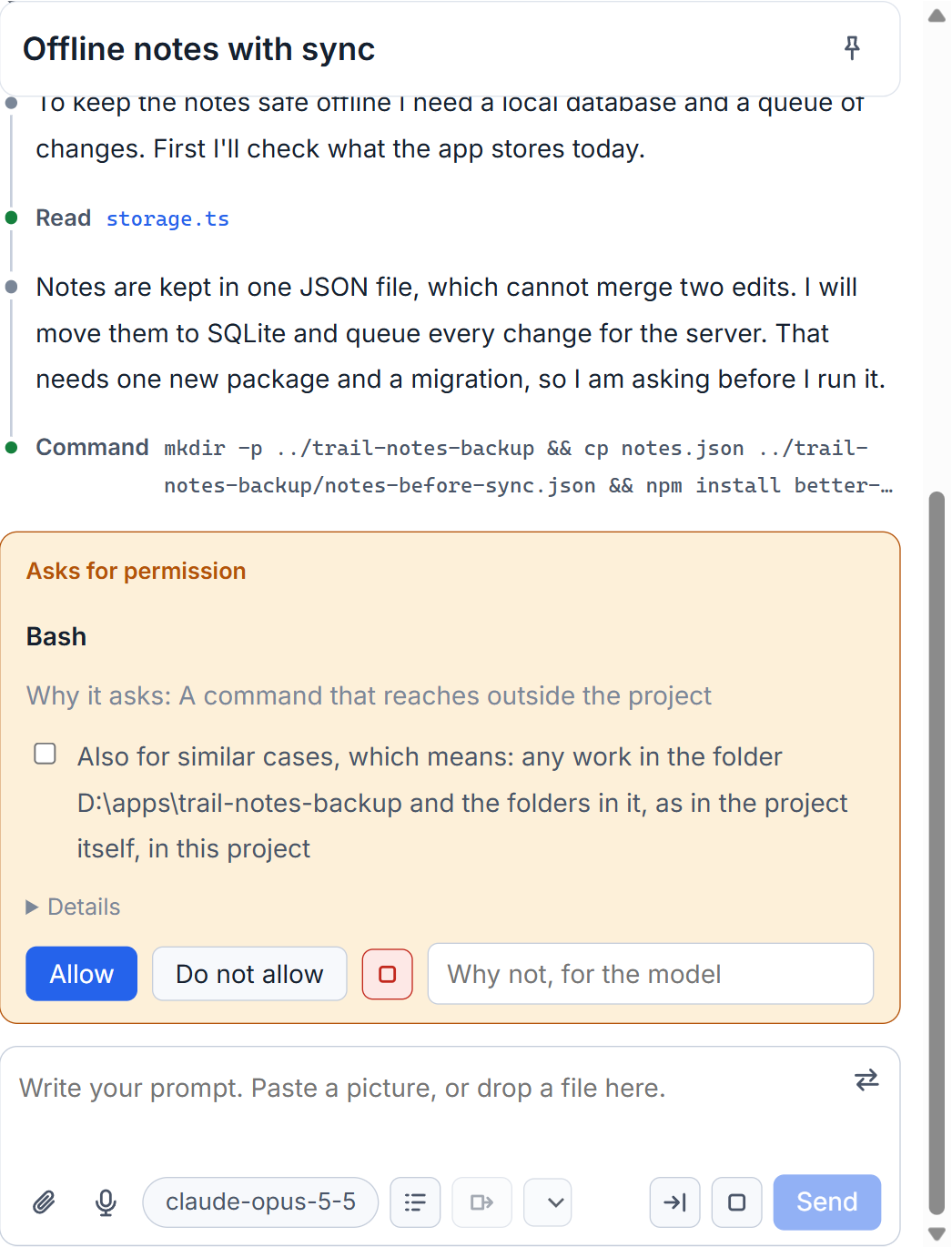
Once you have answered, the session goes back to working and leaves the column. A finished session leaves as soon as you open it, because opening it counts as seeing it. Writing a rule for what a session may do without asking is a separate matter; it is in Answering permission cards and questions.
Limits to know
The column lists sessions that need a person. A session that reached its usage limit, or that stopped midway, is not in it. Those states show on the session's row in its project, in the group that is also named Waiting for you.
A session open in VS Code or a terminal appears here with a mark, but the studio cannot answer it. Its permission or question has to be answered in the program that holds it, unless you bring the session into the studio first.
When the window is narrower than about 1180 pixels, the studio hides the columns on the right: this one, the alerts and the mail. Widen the window, or maximize it, to see them. The top bar and the project cards still show the counts.
Small tips
Pin a session to keep it at the top of the column
Pinned sessions stand above all others in the Waiting for you column, whatever their age. Pin the one you are waiting on most.
Read the pencil number on an item
A small pencil with a number on an item says how many different files that session has written. A finished session with a large number is worth reading before you move on.
Fold the column and keep two counts
A folded right edge becomes a strip with a bell and a clock. The bell counts new alerts and the clock counts sessions waiting for you.
Read the totals in the top bar
The top bar always says how many sessions are working and how many wait for you, even when the right edge is hidden or folded.
Questions
Why is a session that hit its usage limit not in the Waiting for you column?
The column is for sessions that need a decision from you. A session at its limit waits for the clock, so it shows on its own row in the project instead, and continues by itself if you allowed that.
Why can I not see the column?
The studio hides the columns on the right when the window is narrower than about 1180 pixels, or when you folded the column to a strip. Widen the window or press the unfold sign.