
Sessions you started in VS Code or a terminal
Sessions from other programs are already in the list. The studio reads them and leaves them alone until you bring one in.
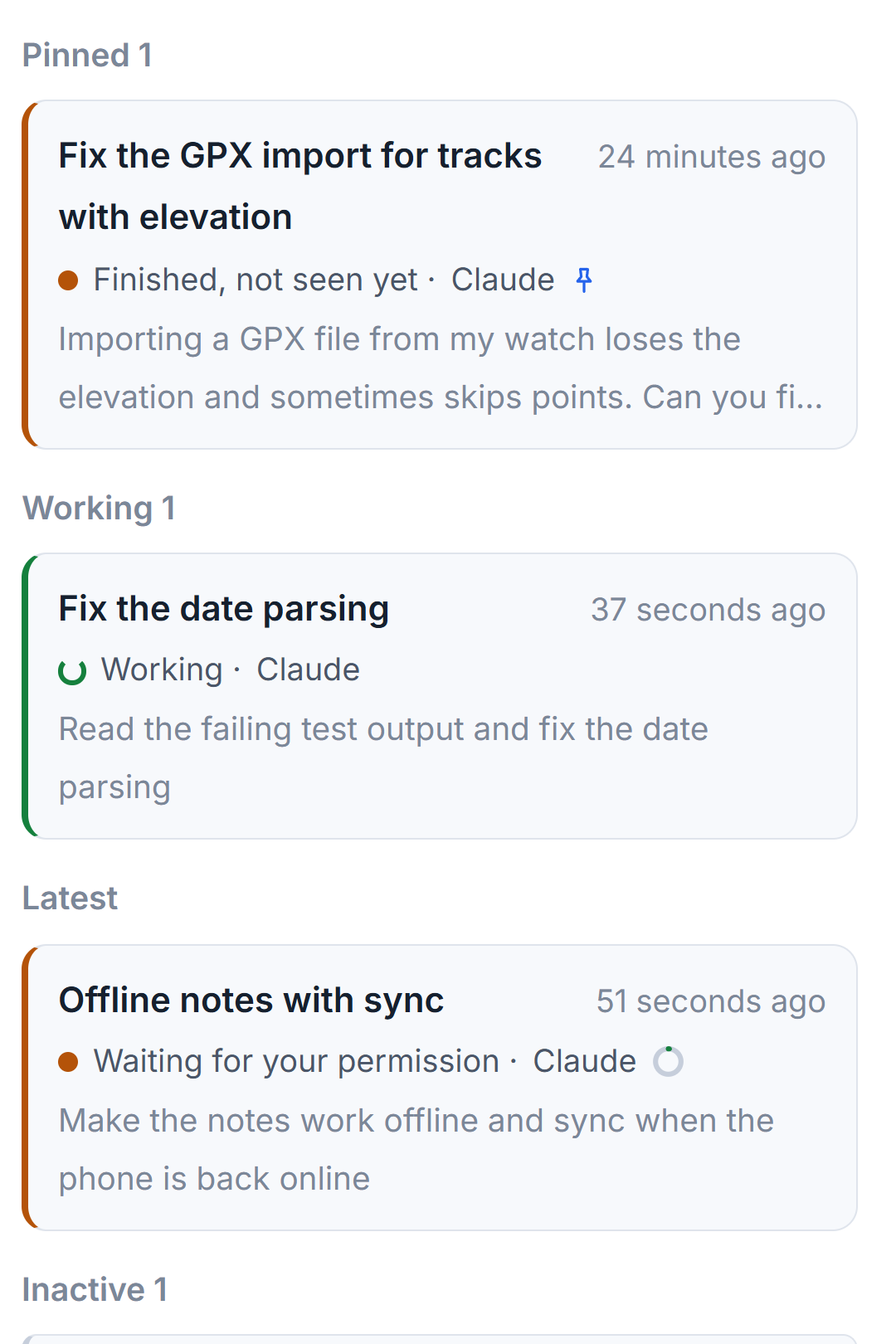
You do not have to move your work into AigoPilot before the studio can see it. Claude Code, Codex and Grok each keep every session on disk as a file, whichever program you ran them from. The studio reads those files, so sessions you started in VS Code, in a terminal, in Cursor or in the Codex desktop app are already in your project list the first time you open it. There is nothing to import.
Reading changes nothing in a session file, and the studio never continues a session it did not start unless you tell it to.
What the studio finds
- Claude Code sessions, from its usual folder and from the folder of every extra account you added in the Accounts window.
- Codex sessions, including conversations of the Codex desktop app. Chats that belong to no project are gathered under Chats without a project at the end of the projects column.
- Grok sessions.
A file that grows is noticed within a moment, because the studio asks Windows to say when a session file changes instead of looking again and again. Only the session that changed is read again. A session that a program started by itself, such as a script that calls a tool once, is left out of the list; the checkbox Show sessions started by programs, above the session list, brings those back. It appears only in a project that has some.
A session started outside the studio carries a mark on its row, such as in VS Code, in a terminal or in a program outside the studio. The same mark follows it into the waiting column and into notices.
Why the studio will not continue it at once
A session belongs to the program that started it, whether or not that program is open right now. Continue it from two places at once and its history splits in two. So the studio treats every outside session as read-only until you decide.
When you open one, a band says that the session belongs to VS Code or to a terminal and is not continued from here until you bring it into the studio. The prompt box stays shut and says the same. If the session is open in that program at the moment, the band says so and warns about the split.
Bring a session into the studio
- Close the session in VS Code or the terminal if you can. It is not required, but it avoids the split.
- Open the session in the studio.
- If more than one tool is installed on that computer, choose the tool in Continue with. The default is the tool of the project.
- Click Bring it into the studio. The prompt box opens.
- Write your prompt and send it. The session continues from where it stopped.
If the file was written a few seconds ago, or the program is plainly still running it, the studio stops and asks once more. The button is Take it over and continue, and your prompt is kept until you press it.
Choosing another tool, say Codex for a session that Claude Code began, does not continue the old session at all. The studio keeps it as it is and starts a fresh session of the other tool, fed with your messages, the last answers and the files changed. The button reads Start a Codex session from it. The whole idea is in Move a project to another AI.
See what outside sessions are doing
A session file alone cannot always say that a session waits for permission. Claude Code can tell the studio, through a small program that it starts on events. In Settings, under More, News from Claude Code shows exactly what would be written into Claude Code's settings file, makes a dated copy before writing, and touches none of your own hooks. With it written, a session of VS Code that waits for permission is shown as waiting for certain, and you can answer it in VS Code.
The same window can write a Guard. It looks at each command before it runs and stops three kinds: deleting a folder with everything in it outside the project, tools for disks and drives, and commands that empty a database. It works in every session, inside the studio and outside, even in full-access mode. Nothing is written until you press Write. The guard reads only commands it can understand, and it does not replace a backup. More in Guarding sessions you start outside AigoPilot.
Small tips
Read the program in a notice title
A Windows notice for a session started outside the studio names the program after the project, such as the project name, a dot and VS Code. Clicking it opens the session in the studio but does not continue it.
Test the news from Claude Code with one click
In Settings, More, News from Claude Code, the Test button sends one report through the same small program Claude Code starts, and says how many milliseconds it took and whether the studio got it.
Find the dated copy made before the settings change
Before the studio writes into Claude Code's settings file, it puts a dated copy beside it, and after writing it reads the file back. The window shows the path of that copy.
Keep the limit percent fresh while you work outside
The window News from Claude Code has a part called The percent of Claude's limit. Written, it lets every Claude session report the same number to the studio, so the percent stays fresh in VS Code too.
Questions
Will AigoPilot change my VS Code session just by showing it?
No. Reading a session file changes nothing in it. The studio continues a session only after you press Bring it into the studio and send a prompt.
Can I use the same session in VS Code and in the studio at once?
Not safely. Two programs writing to one session split its history in two, so the studio warns you and asks you to take it over on purpose.