
Move a project to another AI
A project begun with one tool goes on with another in a fresh session that knows the story so far. The old session is left as it was.
A project that you built with one AI tool can go on with another. You started in VS Code with Claude Code, say, and now the plan is full, or you simply want Codex to take the next step. AigoPilot starts a fresh session of the other tool that begins from what the first one knew, and leaves the old session as it was.
A transcript of one tool cannot be continued by another, so a new session is the only honest way. What the studio does is carry the story across and make the project's instructions readable for both tools.

Go on with another tool, step by step
This example continues a Claude Code session from VS Code with Codex. Nothing has to be imported first: projects you worked on with Claude Code, Codex or Grok on this computer are already in the list.
- Click the project in the left column. Its sessions are listed in the middle, and the one from VS Code carries the orange mark in VS Code.
- Click that session. You can read the whole conversation. An orange band above the closed box says the session belongs to VS Code until you bring it into the studio.
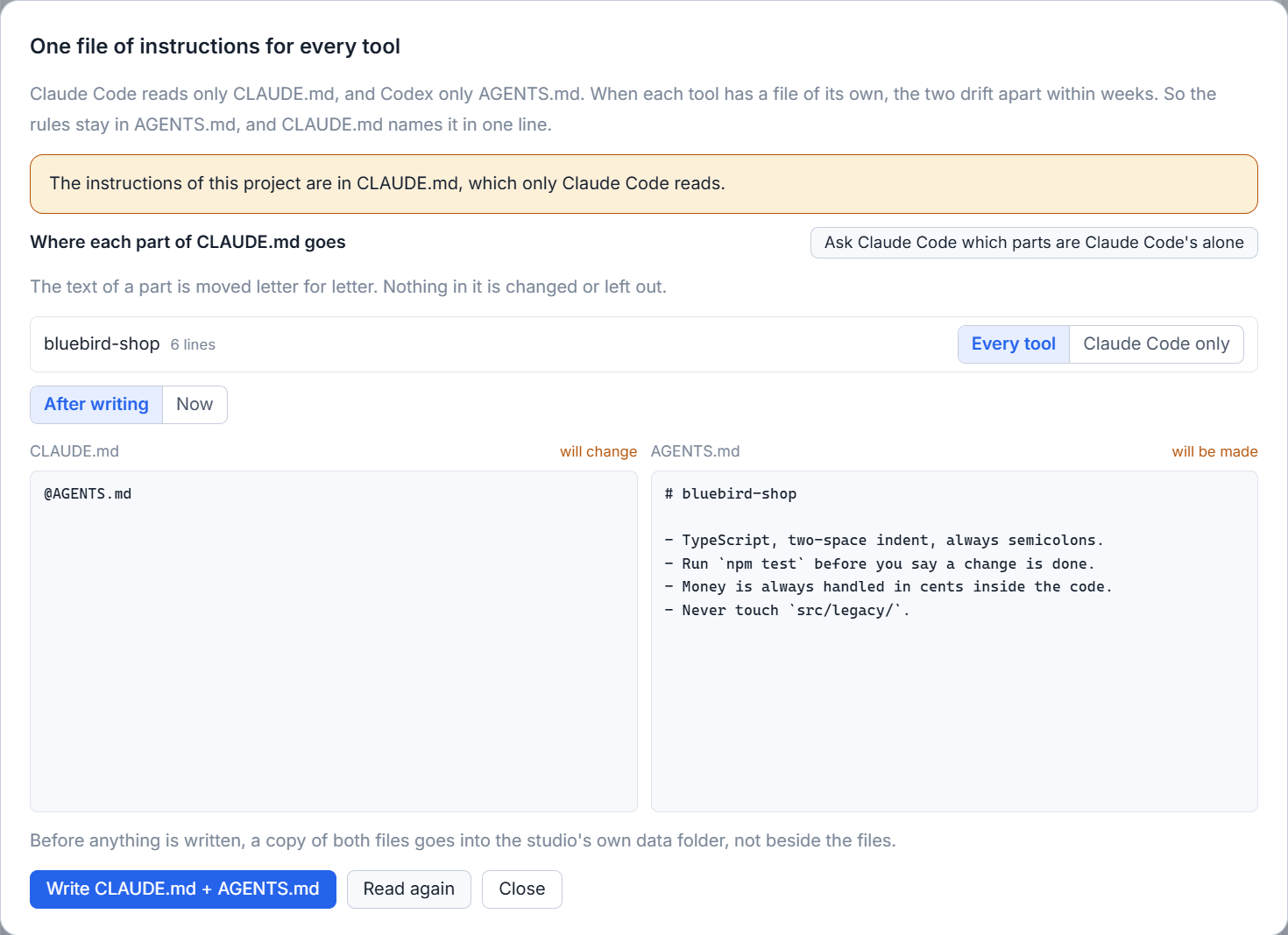
- Under the project's name, click One file for every tool. In the window that opens, click the blue Write CLAUDE.md + AGENTS.md button, then Close. Shared project rules and context for every tool explains what this step writes and how to set it up your own way.
- In the orange band, open the list beside Continue with and choose Codex.
- Click Start a Codex session from it.
A new session appears at the top of the list and starts working. In the test project this was recorded with, its first answer named what was already done and what was left. The old session stays in the list, still marked in VS Code, and nothing was written into it.

What the new session is given
For a session of VS Code or a terminal, the studio builds the first message of the new session from its own record, and no model writes it. It holds your messages in order, word for word, with their times; how each of the last three turns ended; the files the session changed; the tasks it left open; and where the whole old conversation is, in case the new session wants a detail. Every cut says so in square brackets, and the whole stays under about 12,000 tokens.
For a session the studio runs itself, the old session writes a handoff with its own tool and the new session of the other tool starts from that. Either way the first message says what the new session is to do, and the record comes below it.
The tool of a project
Every project has a tool, shown in the line Tool of this project under its name. Until you choose one, it is the tool of the project's newest real session, and the line reads, for example, Claude Code (so far). New sessions start with it. Once you choose a tool yourself, a session of another tool shows a band above its box: This project works with Codex now. Your next message goes on in a new Codex session, which starts from this one. The key Stay with Claude Code keeps that session on its own tool.
If the old session cannot write its handoff, for example because its tool reached its limit, a band offers to start the new session from the studio's record instead.
From now on, work in the studio
The VS Code session stays in the list, and you can still read it. Do not go back to VS Code and keep developing the project there. Two places that change the same project at the same time overwrite each other's work.
Small tips
Put the shared files back as they were
After the studio writes the shared files, the same window keeps a button, Put back as it was. It restores both files as long as nobody has written them since, and refuses otherwise so that nothing is lost.
Keep one session on its own tool
When you have chosen a tool for the project, a session of another tool shows a band with a key, Stay with, followed by the name of its tool. It keeps that session going with its own tool.
Read a VS Code session without bringing it in
A session from VS Code can be opened and read in full. The box stays shut until you press the key that brings it in, so looking at it continues nothing.
Questions
Does the old VS Code session change when I continue with another tool?
No. The studio writes nothing into it. It stays in the list marked in VS Code, and a new session of the other tool starts from the studio's record of it.
Do I have to write the shared instruction files first?
The studio tells the new session where the project's file is even without them. Writing the shared file makes every tool read the same rules, and it shows the whole change before it writes.