
Starting a new session
A new session needs one thing from you, a name. The rest is chosen in the prompt box.
A session is one conversation between you and one tool, Claude Code, Codex or Grok, working inside one project. In AigoPilot you start it from the project, with a name, and the studio starts the tool's own program on the computer where the project lives. The studio runs the official program of the tool for this, so your own subscription and your own sign-in do the work.
The form is short on purpose. Almost everything else, such as the model and the effort, is chosen in the prompt box where you write.
Start one
- Open a project by clicking its card in the projects column.
- Click New session at the top of the project, beside its name.
- Type a name in Session name. It is required: the form says Give the session a name before it starts. if you leave it empty.
- If the form shows With, choose the tool.
- Click Start.
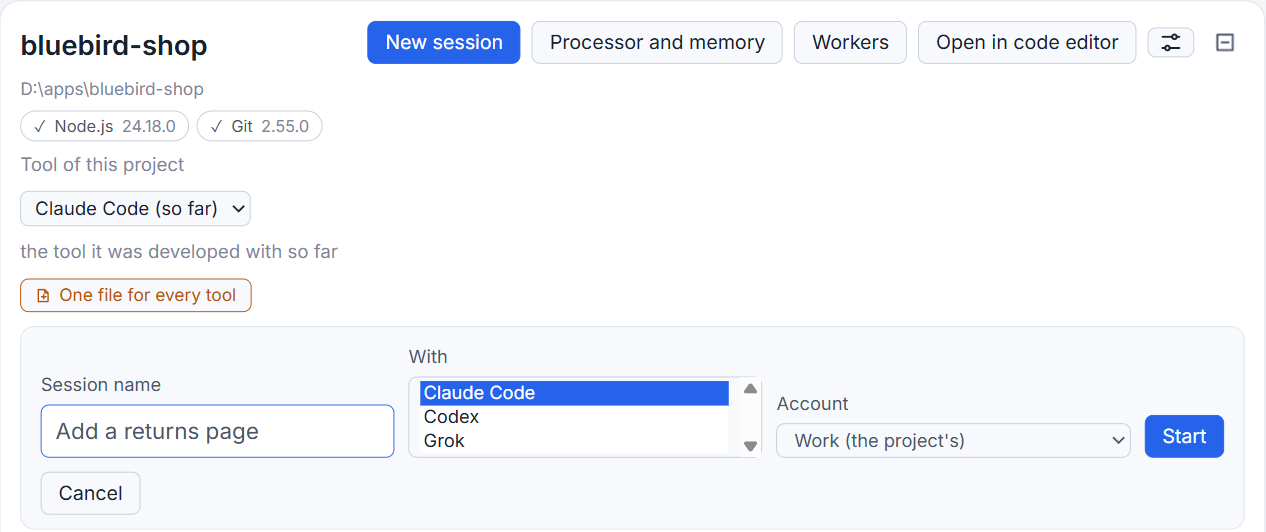
The new session appears at the top of the list, marked as new, and its conversation opens with an empty prompt box. Write your first request there and send it.
New session is grayed out while the project's computer does not answer, or when the project was carried to another computer and its old copy is locked.
The tool, and the account
With lists only the tools installed on the project's computer, and it appears only when there is more than one. The one chosen first is the tool of the project, which you set in the row Tool of this project; see Adding a project. Your choice in the form is for this session only and does not change the project's tool.
If you have added more than one account for the tool you chose, an Account list appears. The project's own account carries the words "the project's" beside it. A session started with another account stays with it when you continue it later. If the tool is missing on that computer, the studio says it was not found and lists the places it looked in. Install tools on another computer covers fixing that.
Model, effort and plan mode
These are in the prompt box, not in the form, and you can set them before the first prompt. The button in the box names the model and effort that are in force. Click it to choose another model from the list the tool itself offers on that computer, and move the effort dial. For Claude Code, the Plan mode sign makes the session plan first and change nothing until you say so; if you turn it on before the first message, the session starts in it. Model, effort and plan mode has the rest, including changing them in the middle of a session.
The studio's permission mode decides what the session may do without asking. It is shown in the top bar, as Permissions followed by the mode. See the permission modes.
What the name is for
The name is how you recognize the session in four places: the project's list, the column of what waits for you, Windows notices, and search. Search looks at names before anything else, so a name you chose is the quickest way back to a session. The studio keeps the name in its own data. A rename you make later stays in the studio and is not written into the tool's session file.
You can change the name later by clicking it. A chip in the session's header, You chose this name, tells a name you gave from one the studio made itself, for a handover for example. Rename, pin and archive sessions shows how.
On another computer
The project of another computer sits in the same list, marked with that computer's name. Open it and click New session exactly as above. The session runs on that computer, with that computer's tools and accounts, and the conversation comes back to your window. Setting up the second computer is in Working on another computer.
Small tips
Pick the tool for one session only
The With list in the form changes the tool for that session and leaves the tool of the project as it was. Change the project's own tool in the row Tool of this project.
Turn on plan mode before the first prompt
For Claude Code, switch Plan mode on in the prompt box before you send anything and the session starts in plan mode with your first message.
Use another account for a single session
When a tool has more than one account, the form shows an Account list with the project's own marked. Your choice holds for that session, and it keeps that account when you continue it.
Watch the new row appear before the file exists
A session shows in the list at once, marked as new, and becomes an ordinary row when the tool has written its file a moment later.
Questions
Can I start a session without giving it a name?
No. The form says to give the session a name before it starts. The name is how you find it later in lists, notices and search.
Why does the form not ask which tool to use?
The With list shows only when more than one tool is installed on the project's computer. With one tool, the session simply uses it.