
Rename, pin and archive sessions
Three small marks keep a long list of sessions usable: a good name, a pin, and an archive.
A project that has been used for a few weeks holds dozens of sessions. Three small actions keep that list usable: a name you will recognize, a pin on the sessions you come back to, and an archive for the ones you are done with. None of them changes anything inside the tool. They are marks the studio keeps for you.
You rename and pin in the header of the opened session, and archive from the card just under it.
Rename a session
- Open the session.
- Click its name at the top. A pencil shows beside it when the pointer is over it.
- The whole name is selected. Type the new one.
- Press Enter, or click anywhere else, to keep it. Press Esc to put the old name back.
An empty name is ignored. The new name is the studio's own and is not written into the tool's session file. Once you have named it, a chip in the header says You chose this name.
Pin a session
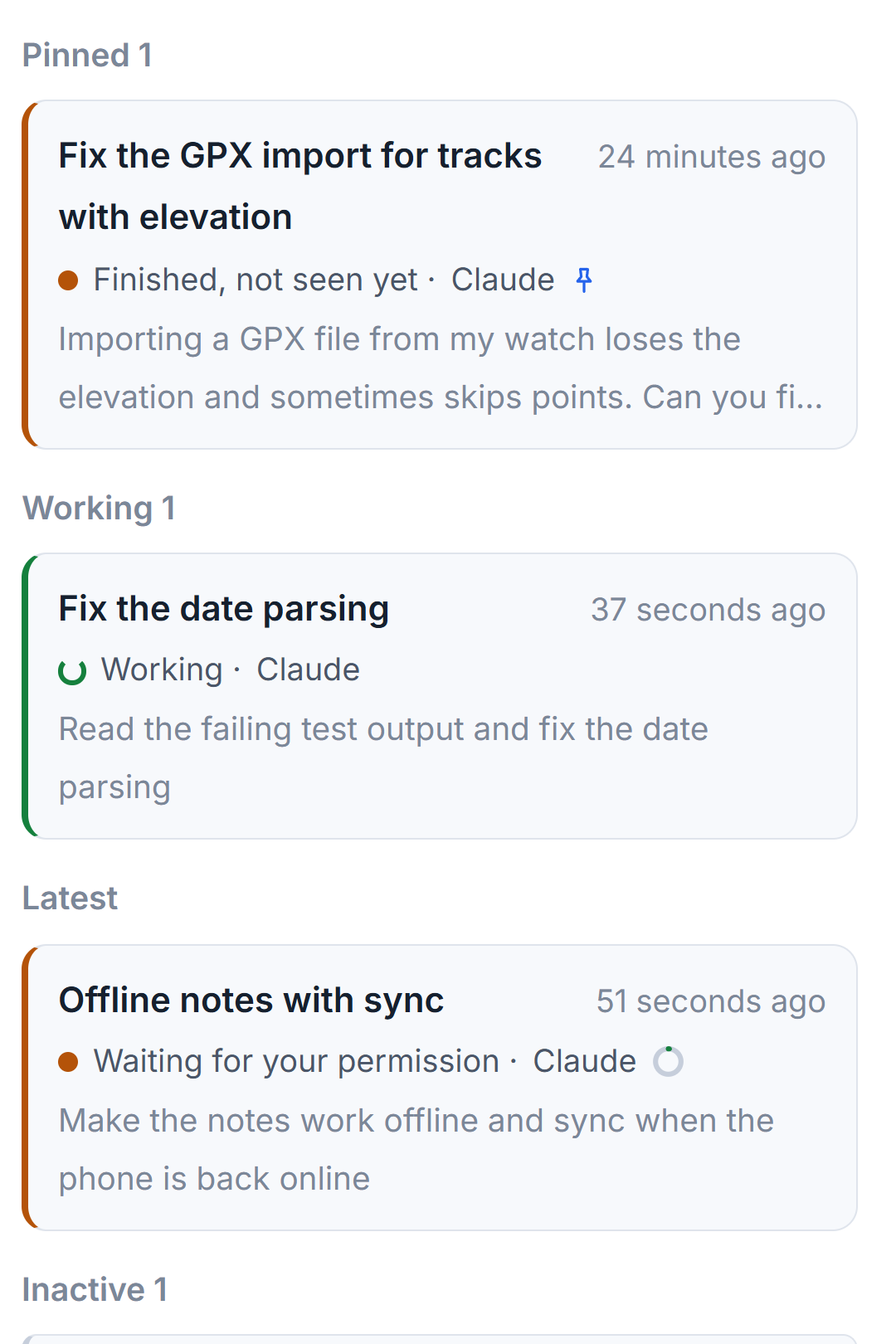
Click the pin at the right of the name. Its label is Pin; on a pinned session it reads Take the pin off. A pinned session moves into a group called Pinned at the top of the project's list, whatever state it is in. In the column Waiting for you, a pinned session stands above the others.
A pin is yours alone. The studio never sets or removes one, and it survives when the studio reads the session's file again after new work. Projects can be pinned too; see Project cards: what each one tells you.
Archive a session and take it back
Archiving is for a finished session you want out of the way.
- Open the session and click the line First prompt · Session file under its name.
- Click Archive.
The session leaves every group and a line archived sessions, with a count, appears at the end of the list. Click that line to see them. An archived session is never counted as waiting for you. To bring one back, open it and use Take out of archive, in the same place the Archive button was.
Nothing is deleted. The tool's session file is not touched and the session can still be continued; the archive is only a mark in the studio.
How the list is laid out
The groups run from the top in this order.
- Pinned, Working.
- Latest: the one session you worked in last that is not working now. It is easy to find again after a break.
- Waiting for you: sessions that wait, finished unseen, stopped or at the usage limit. See The nine session states.
- Inactive: idle sessions, drawn as small rows with no last prompt.
- The archived line.
Rows of active sessions show the last prompt you sent under the state, so you can tell two sessions apart without opening them.
Find a session again
Sessions that programs made, such as a script running a tool, are kept out of the list. If a project has some, a checkbox above the list, Show sessions started by programs, brings them back. To find any other session, use the search box at the top of the window, which looks at names first and also finds archived ones. Searching every conversation shows how.
Small tips
Press Esc to undo a rename
While the name is open for editing, Esc puts the old name back, and an empty name is ignored. Enter or a click elsewhere keeps the new one.
Archive a session to remove it from Waiting for you
An archived session is never counted as waiting. If an old finished session keeps showing amber, archive it and it leaves the column.
Tell two sessions apart by the last prompt
The rows of active sessions show the last prompt you sent under the state. Idle sessions are drawn small, without it, so open one if you need more.
Show the sessions that programs made
Sessions started by scripts are hidden. When a project has some, a checkbox above the list shows how many and brings them in.
Questions
Does renaming or archiving change the tool's own session file?
No. Names, pins and the archive mark are kept by the studio. The session file of Claude Code, Codex or Grok is not rewritten.
Where did my archived session go?
At the end of the project's list there is a line with the number of archived sessions. Click it to see them, and use Take out of archive to bring one back.