
Running several sessions at once
Start the next job while the first one runs. The studio tells you which session has stopped for you.
With one AI session you wait. With AigoPilot you start the next job while the first one runs, in the same project or in another, and the studio tells you which session needs you. The sessions work independently. None of them waits for the others, and none of them needs your window in front of it.
That is the working idea of the studio: you stop watching and look only where the amber signs are.

Start a second session
You do not wait for the first session to finish. Go back to the project and start another.
- With the first session working, click New session again.
- Give it a different name and click Start.
- Type a different job and press Send.
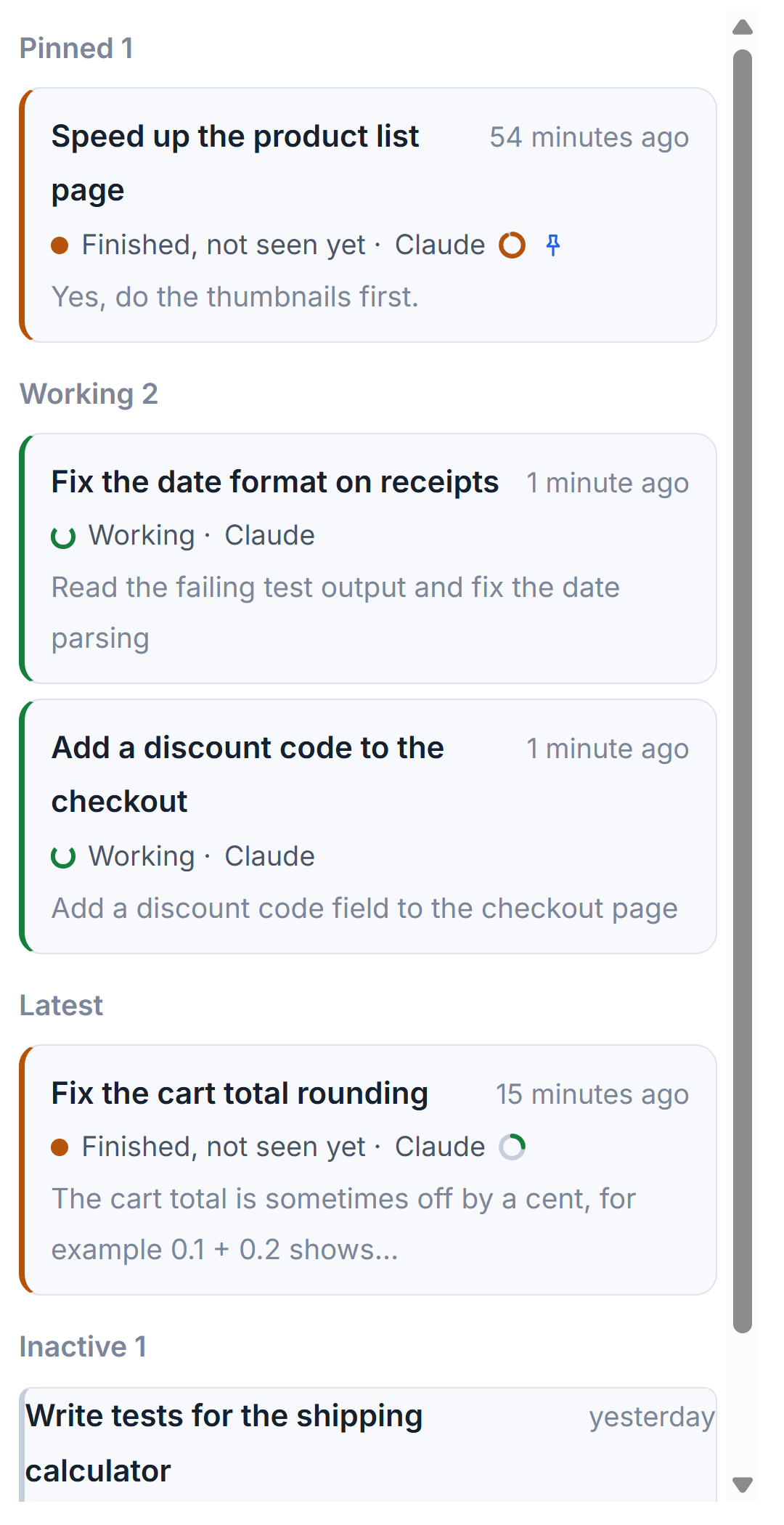
Both sessions now stand under Working in the list, each with a turning sign. The card of the project says 2 working, and the top bar says 2 sessions working. You can open either one to read what it is doing, or open neither.
Work across projects
Sessions of different projects run side by side in the same way. Click the plus beside Projects, choose another folder and click Add, then start a session there. Adding a project is described in Adding a project. The cards of both projects now show their own working counts, and you can open either at any time.
The sessions may use different tools. One project can have a Claude Code session and a Codex session working at once. You can also run a session on another computer of your studio; it appears in the same lists.
See who needs you
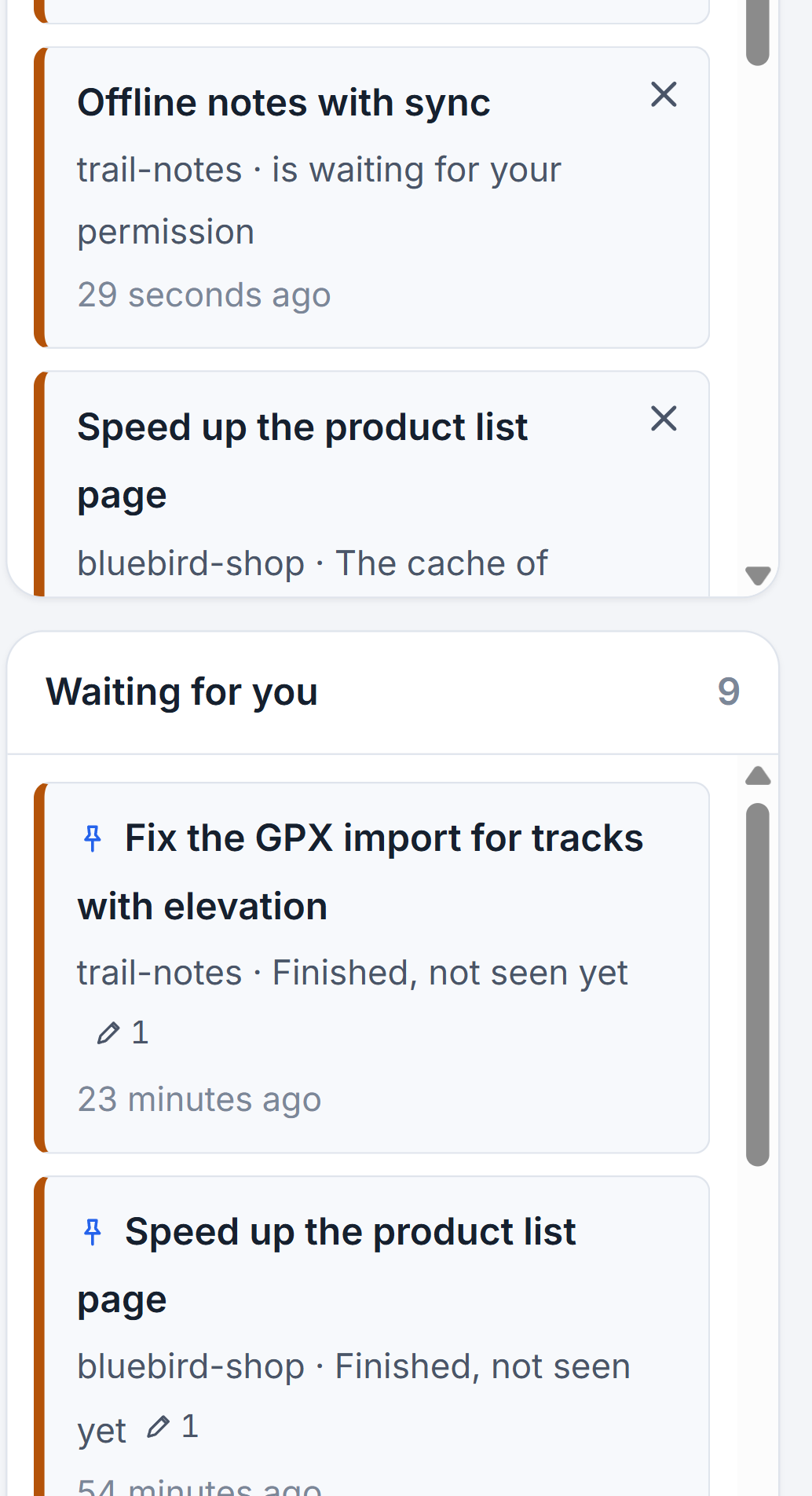
When a session stops to ask for something, its project card turns amber and says waiting for you with a count. Click the card and the list shows which session it is: Waiting for your permission, Waiting for your answer, or Finished, not seen yet.
The column Waiting for you at the right gathers all of them from every project in one list. Click an item and the studio goes straight to that session. For a permission, read the command on the card and click Allow; the session goes on at once and the item leaves the list. The list of what is waiting for you goes through the column in full, and Answering permission cards and questions through the card. How much a session may do without asking is a setting of its own, in the permission modes.
What it costs your machine
Each running session is a real program of the tool, so many sessions mean many programs. We found no limit in the studio on how many may run. What limits you is your computer and the usage limit of your plan, because every session spends from the same allowance.
Each project card shows the memory and processor its sessions take, and the button Processor and memory in a project's head lists them session by session. A chip turns red when a project takes far more than usual. Processor, memory and programs a session left behind has the details.
Small tips
Sort projects by Most waiting for you
Choose Most waiting for you in the menu beside the plus. Projects with sessions that need you come first, then those with the most working sessions.
Send a prompt to a session that is still working
A prompt sent to a working session waits in line under the box. Send now moves it into the running turn at once instead of after the turn ends.
Spot the project that loads your machine
The memory and processor chip on a project card turns red when its sessions take far more than usual, so you know which project to look at.
Questions
How many sessions can I run at once?
We found no limit in the studio. Your computer and the usage limit of your plan set the ceiling, because every session spends from the same allowance.
Can two sessions work in the same project?
Yes, but they share one folder and the studio does not give each its own copy. Give them different parts of the project so that they do not change the same file.