
The four permission modes
Fully safe, Medium, Full access or Custom: pick how much a session may do before it has to ask you.
A permission mode decides what a session may do without asking you. AigoPilot has four: Fully safe, Medium, Full access and Custom. Every request that a session sends, such as running a command or changing a file, is put in a group, and the mode says whether that group goes through or becomes a card for you to answer.
Medium is the mode in force until you choose another. It lets a session work freely inside its project and asks about anything that reaches outside it or cannot be undone.
Read a permission card
When a request needs you, an orange card stands above the box: Asks for permission, the tool it is for, and a line Why it asks that names the group, for example A command that reaches outside the project. Open Details to read the whole command or the whole change before you decide.
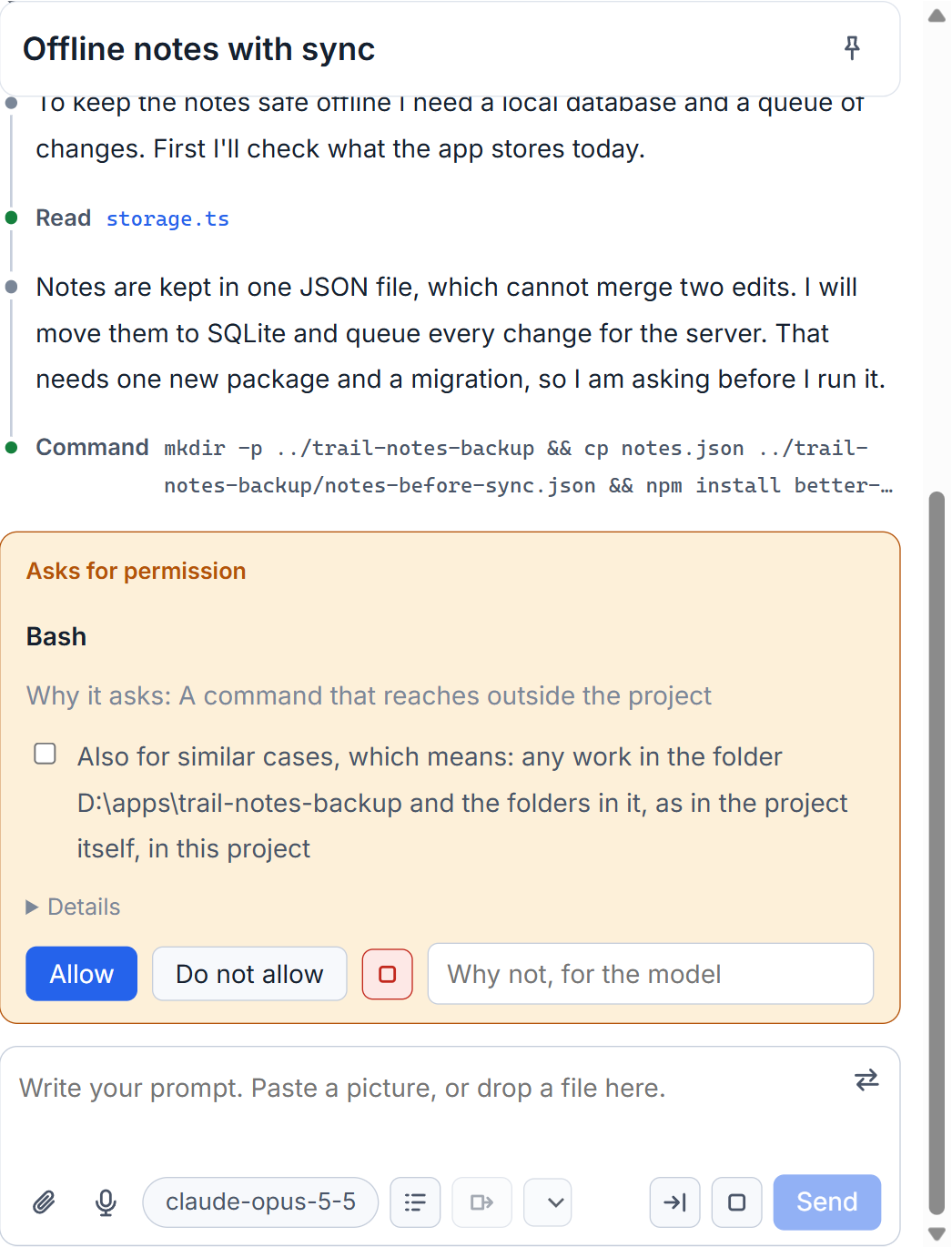
You have three answers. Allow lets this one thing through. Do not allow refuses it, and the session goes on and looks for another way; the field Why not, for the model lets you tell it why. Do not allow, and stop, the small red square, refuses and stops the session. An answer counts for this one request. The one exception is the box Also for similar cases, which keeps your answer as a rule of the project (see The thirteen permission groups).
The four modes
- Fully safe asks for everything that changes something. Only reading the files of the project is never asked.
- Medium asks only for what is dangerous: outside the project, and what cannot be undone. Inside the project a session reads, writes, deletes, runs commands and searches the web without asking.
- Full access asks for nothing.
- Custom lets you set every group yourself. It starts from Medium's choices.
Reading the files of the project is the one thing every mode lets through, because Claude Code itself never asks for it and the studio does not change that.
Choose a mode
- Click the button at the right end of the top bar, Permissions: Medium. The window What may sessions do without asking? opens.
- Choose Every project of this computer or Only the project you have open.
- Click a mode. The list under it says, for each of the thirteen groups, Approved by itself or Asks.
- For Medium, Full access and Custom, read the red card The responsibility is yours. It lists everything the mode does without asking.
- Click I accept, put this in force. For Fully safe the button reads Put in force.
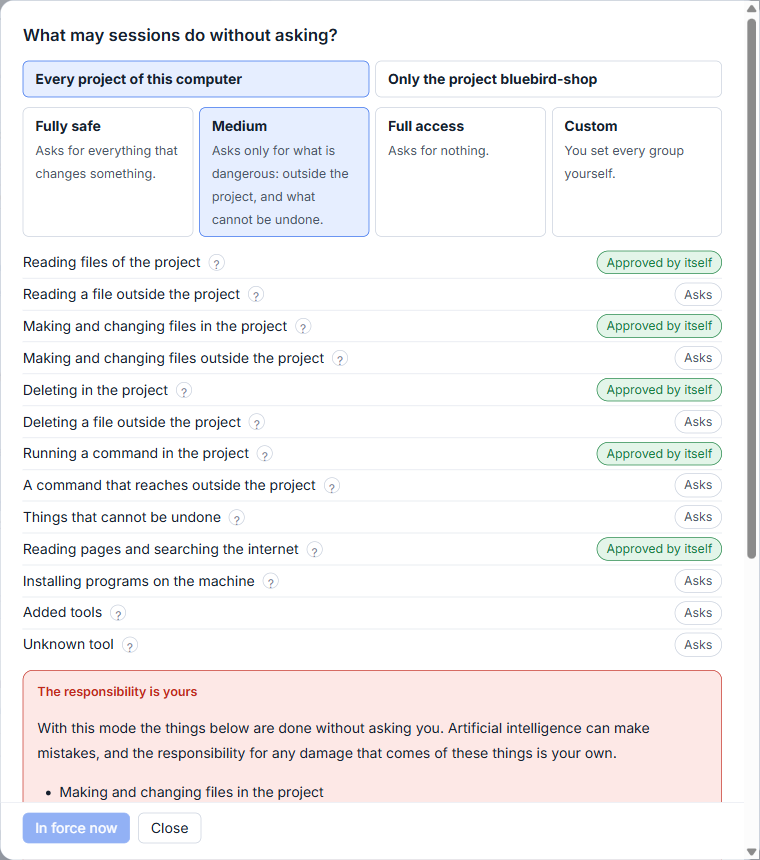
Choosing a mode does nothing until you accept it. Until a mode you chose is accepted, the studio keeps asking for everything, and the button in the top bar says so. Close leaves things as they were. The top bar button is the quickest check you have: it always names the mode in force.
One project, and one computer
A mode can belong to the whole computer or to one project. The other projects keep the computer's mode. Full access for a single project is narrower than Full access for the computer: that project still asks before it deletes a file outside its folder, before something that cannot be undone, and before it installs programs on the machine. A button at the bottom, Give it the computer's mode again, takes the project's own mode away.
If you work on another computer from the studio, each computer keeps its own mode, accepted separately, and the button names the computer it applies to.
What the modes are not
A mode is the studio's judgement of the requests a tool sends. It is not a sandbox and not a boundary of the operating system. Where the studio cannot read a command well enough to know what it touches, it puts the command in the more careful group (see How the studio reads a command before it runs). The studio also never starts a session in a tool's own auto-approve mode: starting or continuing a session with such a mode is refused, so your chosen mode is the only thing that decides.
Small tips
Check the mode by the button in the top bar
The button at the right end of the top bar always names the mode in force. It names the project too when the open project has a mode of its own, and the computer when you look at another one.
Look at a mode without putting it in force
You can choose any mode in the permissions window and read exactly what it would grant. Nothing changes until you accept, and Close leaves everything as it was.
Tell the model why you refused
On a permission card, the field Why not, for the model is read by the session after a refusal, so it can pick a different way.
Give one project its own mode
In the permissions window, choose Only the project instead of Every project of this computer. A project in Full access still asks about deleting outside its folder, things that cannot be undone, and installing programs.
Questions
Which mode is in force when I install the studio?
Medium, until you choose another. A mode that lets more through counts only after you press the accept button in the permissions window.
Is a permission mode a sandbox?
No. The studio judges each request a tool sends and lets it through or asks you. It is not a boundary of the operating system.