
Adding a project
A project is a folder. Add it once and its sessions, counts and settings sit on one card.
A project in AigoPilot is a folder. You point the studio at it once, and from then on its sessions, its waiting count and its settings live on one card in the projects column. Most folders you already work in appear by themselves, because the studio reads the session files that Claude Code, Codex and Grok keep on disk. You add a project by hand when the folder has no session yet, or when it sits on another computer of your studio.
This page covers adding one, working with several, the tool a project uses, and the button that opens the folder in your code editor.
Add a project
The plus sign sits in the header of the projects column, on the left of the window.
- Click the plus beside Projects. The New project window opens.
- If other computers are paired with your studio and switched on, answer Which computer is the project on? Otherwise this question does not appear.
- Click Choose folder and pick the folder in the Windows dialog. You can make a new empty folder there first. The path appears under the button.
- Click Add.
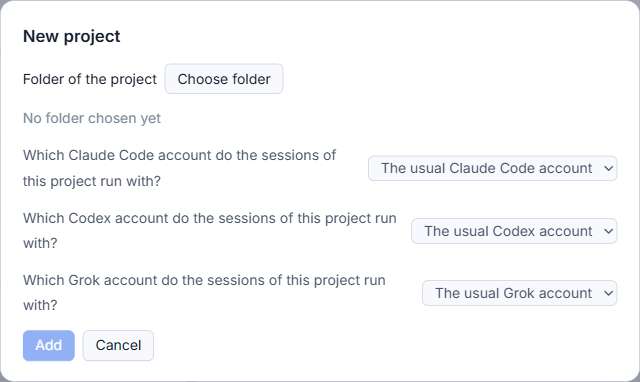
The project opens at once, even with no session in it. A folder that already holds sessions keeps all of them, and adding a folder you had archived brings its card back.
For a folder on another computer there is no Windows dialog. The window lists that computer's own folders instead, with Up one folder, Home folder and Make folder. Open the folder you want and click This folder is the project. How to pair a second computer is in Working on another computer.
If a tool has more than one account on that computer, the window also asks which account the sessions of this project run with. With one account per tool the question stays out of the way. See Using several subscriptions for one tool.
Work with several projects
Add as many as you like. Each gets a card, and the cards report on their own how many sessions work and how many wait for you. Project cards: what each one tells you explains every number on a card.
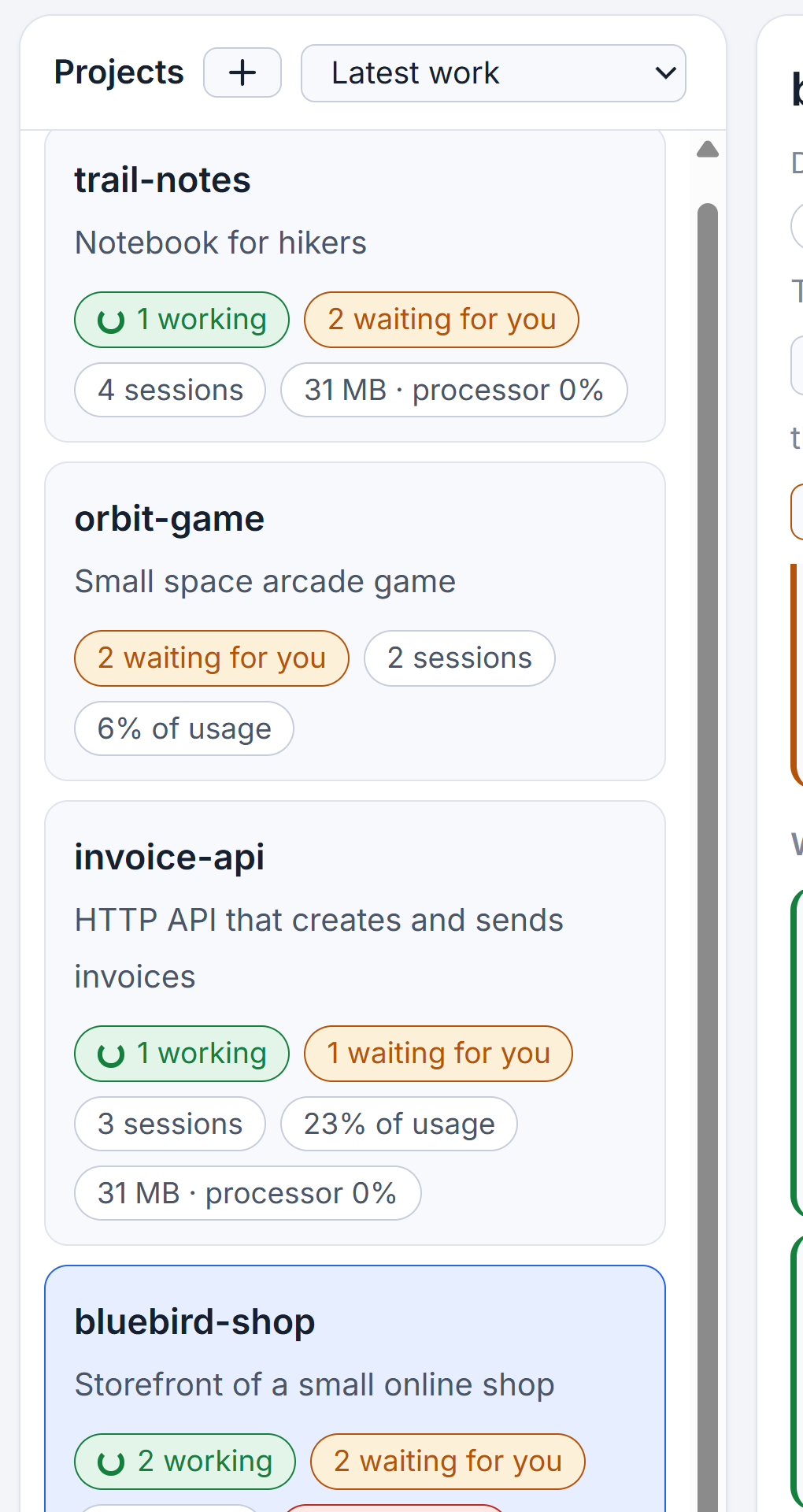
Folders that only programs have worked in, such as a script that called claude -p, are not shown as projects. A folder you added yourself is always shown.
The tool of a project
The head of a project, under its name, has a row called Tool of this project. It names the tool that new sessions of the project start with: Claude Code, Codex or Grok. Until you choose one, it is the tool of the project's newest real session, and the row says (so far) beside it. A project with no session yet takes the first tool installed on that computer and says (no session yet).
Pick another tool from the list and the next new session starts with it. The list offers only tools that are installed on the project's computer. Changing the tool never touches an old session; the old session stays as it was. For moving real work from one tool to another, read Move a project to another AI.
Open the project in your code editor
The head also has an Open in code editor button. It starts Visual Studio Code on the project's folder by running its code command, so VS Code must be installed and code must be on your PATH. If it is not, the studio shows a short message saying the editor could not start.
The button is there only for projects on the computer you are sitting at. It opens the folder, not a particular session; the studio has no editor of its own. To start the first session, go on to Starting a new session.
Small tips
Archive a project you no longer work on
Click the sliders icon in the head of a project, then Archive this project, and confirm. The card leaves the list and the alerts, the folder and its sessions stay as they are, and sessions that are working go on. Take it back from Archived projects at the end of the projects column.
Mark a project as important
Tick Important project in the settings of the project. When the app setting for the usage limit is Continue important projects only, the sessions of marked projects continue by themselves after a limit resets and the others wait for you.
Turn off the notices of one project
Untick Notices of this project in its settings and Windows stops telling you about that project's sessions. The other projects keep their notices.
Make a new folder on another computer while adding
When you add a project on another computer, the folder list has a Make folder button. Type the name of the new folder, press it, and then choose This folder is the project.
Questions
Do I have to add my projects before their sessions show up?
No. The studio reads the session files the tools already keep, so a folder with sessions appears by itself. You add a project by hand when the folder has no session yet, or when it is on another computer.
Why does the Open in code editor button do nothing?
It runs the code command of Visual Studio Code. If VS Code is not installed, or code is not on your PATH, the studio shows a message that the editor could not start.