
Project cards: what each one tells you
Each card in the projects column is a small report, so you can read a project without opening it.
The projects column is a list of cards, one per project, and each card is a small status report. You can tell from the card alone whether anything is working in a project, whether something waits for you, and whether the project is using more of your plan than it should. You do not have to open it.
Click a card to open the project: its sessions appear in the middle of the window. The card of the open project stays highlighted.
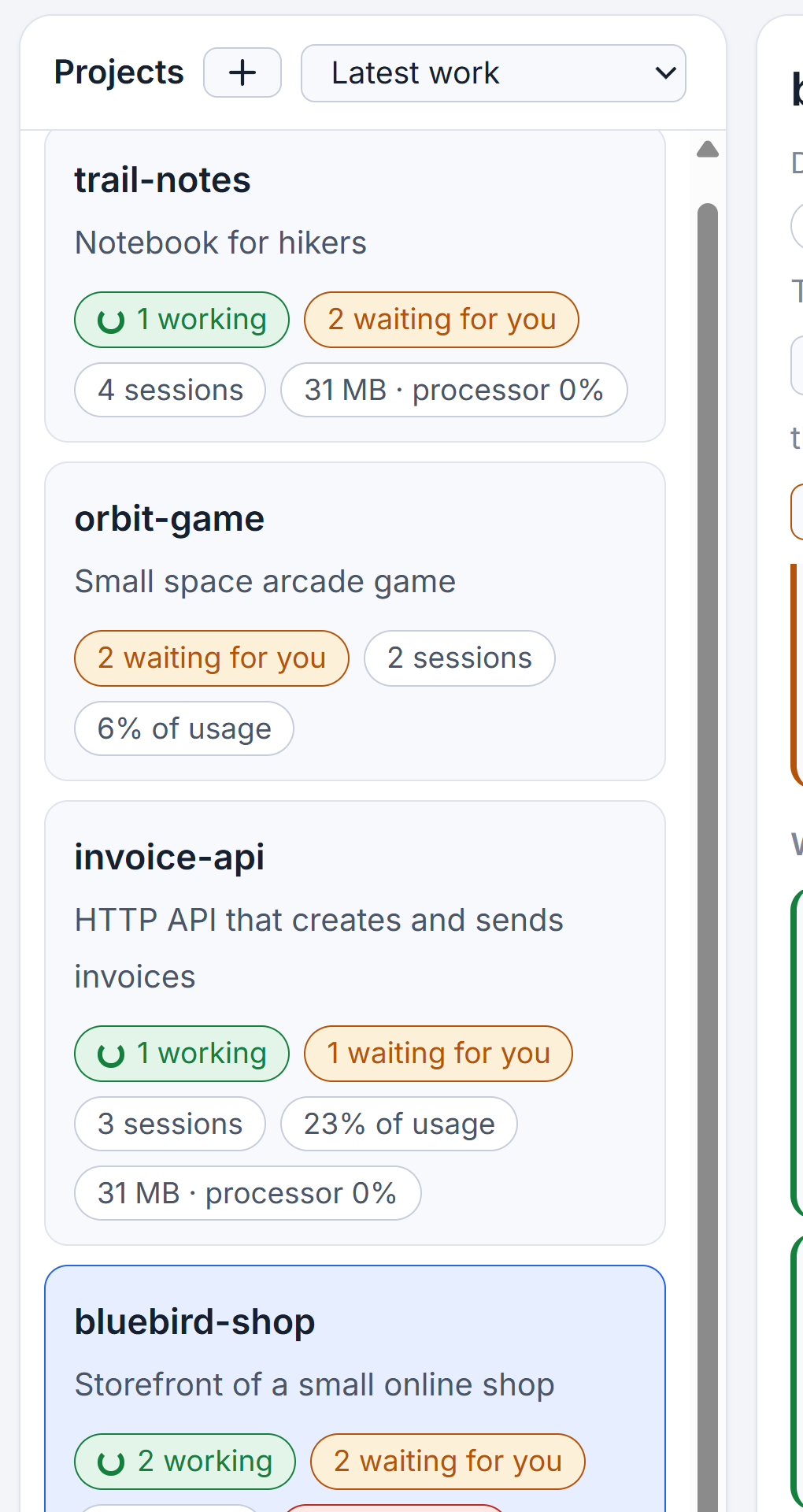
What the chips say
Under the project's name sits a row of small chips. Which ones you see depends on what is going on.
- working, with a turning sign, counts the sessions that are working now, in green.
- waiting for you in amber counts sessions that ask a question, ask permission, or finished while you were not looking. When both counts are zero the chip says No active session instead.
- The number of sessions in the project. Archived sessions are not counted.
- A percent of usage appears once a project's share reaches 1 percent. It turns amber at a quarter and red at half. The tooltip names the period it is counted over. The share is worked out from what every computer of your studio used, valued at API prices, so it shows which project eats your limit, not what you pay.
- A memory and processor chip, such as a figure in megabytes and processor 3%. It shows what the sessions of the project take on this computer right now, and turns red when that is far above usual. Projects on other computers do not show it. Processor, memory and programs a session left behind explains it.
- An envelope with counts, when the project has email waiting for an answer: sales, support and not yet sorted. Click it and the mail column shows only that project's email.
When your studio has more than one computer, each card also carries the name and color of the computer it is on. A computer that does not answer sends its cards to the end of the list, and they say so.
Choose the order
The menu beside the plus changes the order of the cards.
| Choice | What comes first |
|---|---|
| Latest work | The project whose sessions changed most recently. |
| Most waiting for you | The project with the most sessions that need you, then the most working. |
| Most sessions | The project with the largest session count. |
| Most usage | The project with the largest share of usage. |
| Name | Alphabetical. |
In every order, projects you pinned stand above the rest. Move the pointer over a card and a small pin appears at its edge; click it to pin, click again to take the pin off. A pinned project keeps its pin showing.
Other lists in the column
At the end of the column are two folded lines. Chats without a project holds conversations that belong to no folder, such as chats of the Codex desktop app. Archived projects holds projects you put away; each has a Take out of archive button. Archiving is done in the project's own settings, described in Adding a project.
Fold the column
The fold button at the top right of the column's header turns it into a thin strip. The strip keeps two counts: sessions working, and sessions waiting for you, over all projects. Click the unfold sign to open it again. More about folding in Columns, folding and where the studio reopens.
Small tips
Pin a project so it stays at the top
Move the pointer over a card and click the small pin at its edge. A pinned project stands above the others in every sort order. Click again to take the pin off.
Click the mail chip to read only that project's email
When a card has an envelope chip, a click opens the mail column and filters it to that project, with sales and support counted apart.
Sort by Most usage to find what eats your limit
Choose Most usage in the menu beside the plus. The projects with the largest share of the current limit period move to the top, and a share of half or more turns red.
Hover the usage chip to see its period
The tooltip of the percent chip says which period the share is counted over, so you do not mistake a week for five hours.
Questions
What does the percent of usage on a project card mean?
It is the project's share of what all your computers used in the current limit period, valued at API prices. The tooltip names the period. It shows which project eats your limit, not what you pay.
Why does a card say No active session?
Nothing in the project is working and nothing waits for you. The project may still have idle or archived sessions, and the number of sessions stays on the card.