
Columns, folding and where the studio reopens
Set the columns once. The studio opens the next time exactly as you left it.
The studio window is built from columns, and you decide how wide each one is, or whether it is there at all. A narrow laptop screen and a wide monitor need different arrangements, and a column you never use, such as email, should cost you no room.
Whatever you set stays. When you open the studio again, it comes back on the same project and session, with the same widths and the same folded columns.
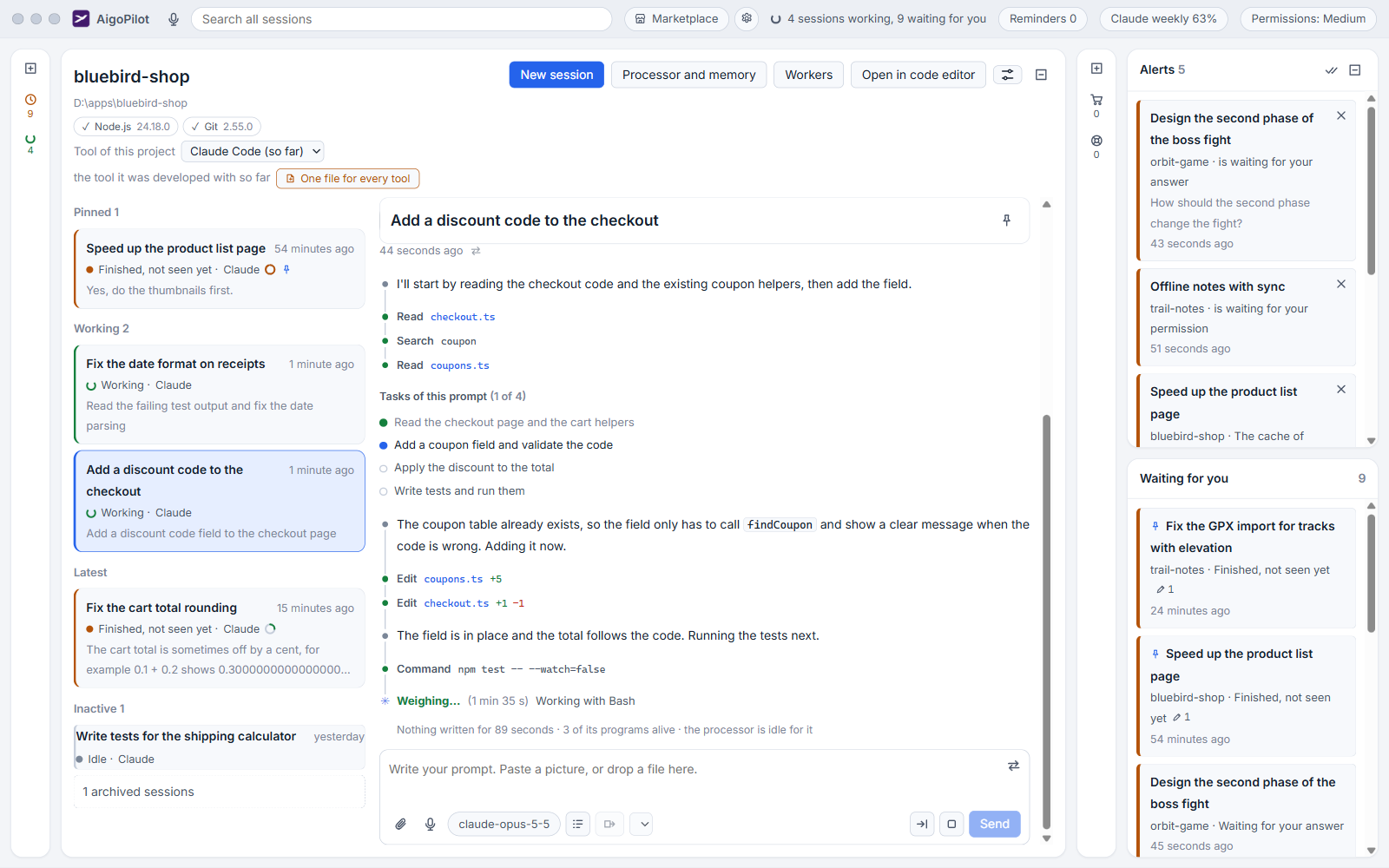
The columns
From left to right the window holds four areas.
- Projects, the list of cards.
- The project itself: its sessions on the left side, and the open conversation beside them. This area takes the room the others leave.
- The mail column of your projects.
- The right edge, with Alerts above and Waiting for you below.
Between neighbors there is a gap, and that gap is the handle. The list of sessions and the conversation inside the project area have one too.
Change a width
- Move the pointer onto the gap between two columns. It is wider to grab than it looks.
- Press and drag left or right.
- Let go. The width is saved.
Double-click a handle to put that column back to its default width. With the keyboard, press Tab until a handle has focus, then use ← and → to move it by 16 pixels, and Home to reset it.
The conversation never gets narrower than 320 pixels. When the window is too narrow for everything, the right edge gives way first, then mail, then the session list, then projects. Below about 1180 pixels of window width the mail column and the right edge are hidden altogether, and below about 820 the columns stack into one scrolling page.
Fold a column to a strip
Each column header has a small fold button, titled Fold the column. Press it and the column shrinks to a thin strip along the edge. The strip is not empty: it keeps the counts that matter. The projects strip counts sessions working and sessions waiting. The right edge strip counts new alerts and waiting sessions. The project strip counts the working sessions of the open project.
To open a column again, press the unfold sign at the top of its strip. The studio also remembers which columns were folded when you quit.
Folding the columns you do not use gives the conversation the whole width, which suits a long answer or a wide diff.
When the window is closed or hidden
Closing the window only hides it. While it is hidden or minimized, the page stops its timers and animations, so the studio asks very little of your computer. The sessions keep running. How to leave for good, and what happens to running sessions, is in Continuing an earlier session.
If a conversation will not draw
A single conversation that fails to display cannot take the rest of the studio down. The conversation area shows a short message, This conversation could not be shown, with the error text to send to the maker, and a Try again button. Every other column keeps working. Choose another session and carry on.
Themes and text size are set apart from the layout, in Themes and text size. A tour of the whole window is in A tour of the studio window.
Small tips
Double-click a divider to reset that column
A double-click on the gap between two columns puts the column on its default width. It is the fastest way to undo a drag that went too far.
Move a divider with the arrow keys
Press Tab until a divider has focus, then the left and right arrows move it by 16 pixels, and Home resets it. The widths are saved after each move.
Read the counts on a folded strip
A folded column keeps its counts on the strip: working and waiting for projects, and bell and clock for the right edge. You can see that something happened without opening it.
Retry a conversation that would not draw
If one conversation fails to display, the rest of the studio keeps working and the conversation area offers Try again beside the error text.
Questions
Where did the mail and alerts columns go?
When the window is narrower than about 1180 pixels, the studio hides the mail column and the right edge. Widen or maximize the window, or unfold the strip if you folded it.
Does closing the window stop my sessions?
No. Closing only hides the window and the sessions keep running. Quit from the tray or from Settings to leave, and the studio asks what to do with work in progress.