
Themes and text size
One light theme, three dark ones, four sizes, and a separate choice for the language of replies.
If you look at the studio for eight hours a day, its colors and its type size matter. AigoPilot has one light theme and three dark ones, four text sizes, and a few settings for the language that sessions answer in. All of them are in the Settings window and apply at once, with no restart.
Change the theme and the text size
- Click the gear in the top bar to open Settings.
- In the group Look, open the drop-down Theme and choose one.
- Open Text size and choose one.
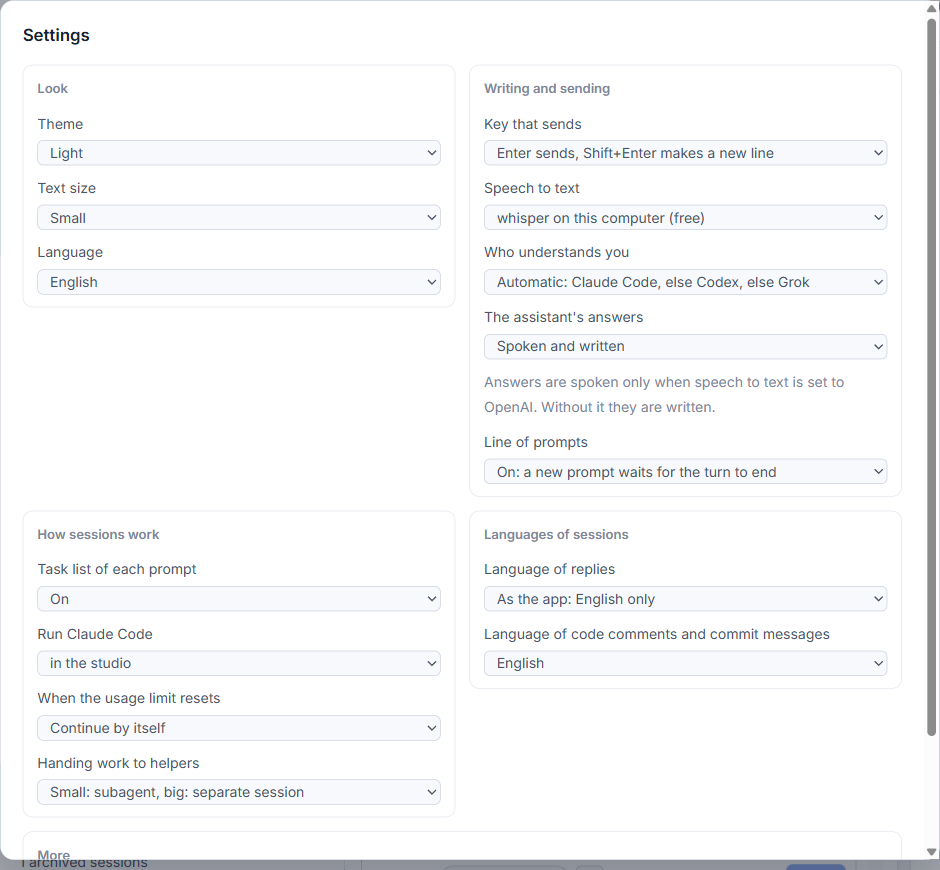
The choice is remembered, and the studio opens with it next time. A new studio starts with Light and Small.
The four themes
- Light: white panels on pale grey. The starting theme.
- Dark compact: near black with a green tint and a green accent. Square corners and no shadows, so it fits the most on a screen.
- Dark calm: a cooler near black with a mint accent and rounder corners.
- Dark with Mac colours: translucent panels over a soft purple, blue and green glow, with a blue accent. Rounder corners again.
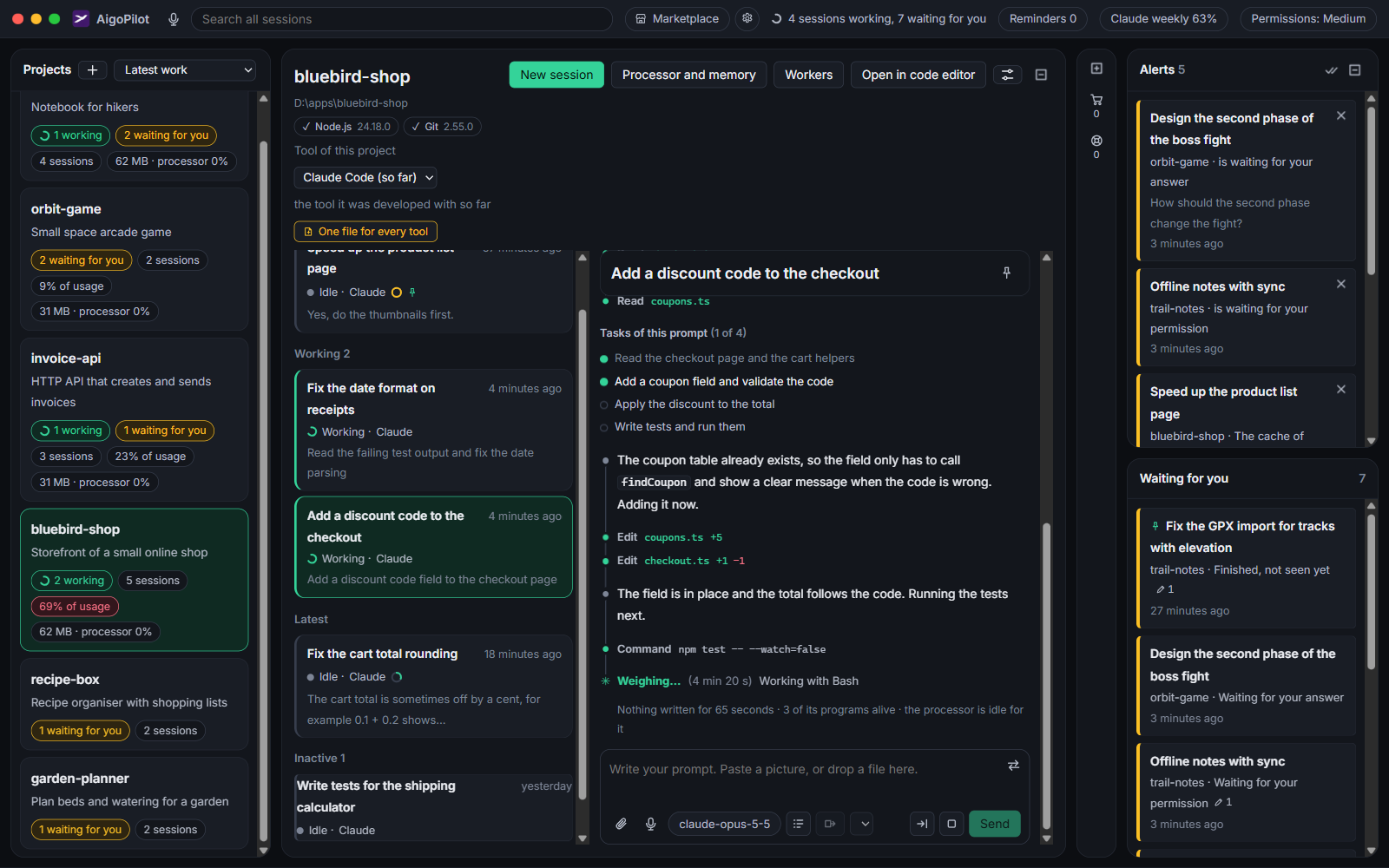
Status colors keep their meaning in every theme: green for work in progress and good news, amber for something that waits for you, red for trouble. The alert levels in the column of alerts use the same three.
Text size
There are four sizes: Small (14 px), Medium (15.5 px), Large (17 px) and Very large (19 px). The size changes the whole studio at once: the lists, the conversation, the prompt box, every window. If conversations feel cramped on a large monitor, try Medium before you change anything else. If you sit far from the screen, Large and Very large make the page taller instead of squeezing it.
The language of the studio
The studio is in English. The Language drop-down in the same group offers English only. The studio is built so that other interface languages can be added, with the right layout and text direction, but none other is offered yet. The agent's own window on another computer is English only as well.
The language sessions answer in
This is a separate matter from the language of the studio. In the group Languages of sessions:
- Language of replies: the default is As the app: English. You can choose any of 21 languages, each named in its own script, or English only. Sessions then answer in that language and script, even when you type in Latin letters, and write their task lists in it. Code, commands and file paths stay as they are.
- Language of code comments and commit messages: English or The language of replies. If the project's own instructions say otherwise, they win.
Both settings hold for new sessions. The studio gives the rule to Claude Code at the start of each new session, through Claude Code's own option for it, and the session's list of instructions shows what was added. Sessions of Codex and Grok do not get the reply-language rule. For where instruction files come from, see Instruction files, and for the other choices in this window, The prompt box and Columns and layout.
Small tips
Try Medium text before changing anything else
The studio starts at Small. On a large monitor, Medium makes conversations easier to read without changing the layout of the columns.
Keep code comments in English
Under Languages of sessions, Language of code comments and commit messages can stay English while replies come in your language. The project's own instructions win if they say otherwise.
Questions
Is the studio available in other languages?
The studio is in English. It is built so that other interface languages can be added, but none other is offered yet.
Does the language of replies change the studio's words?
No. It only tells new Claude Code sessions which language to answer in. Code, commands and file paths stay as they are.