
A tour of the studio window
Four areas and a top bar, and which one answers which question.
The studio window has four working areas side by side: your projects, the sessions of the chosen project, the conversation of the chosen session, and a column of everything that is waiting for you. A bar across the top holds search, the Marketplace, the settings, your usage limits and the permission mode. Once you know which area answers which question, the rest of the guide is easy to place.

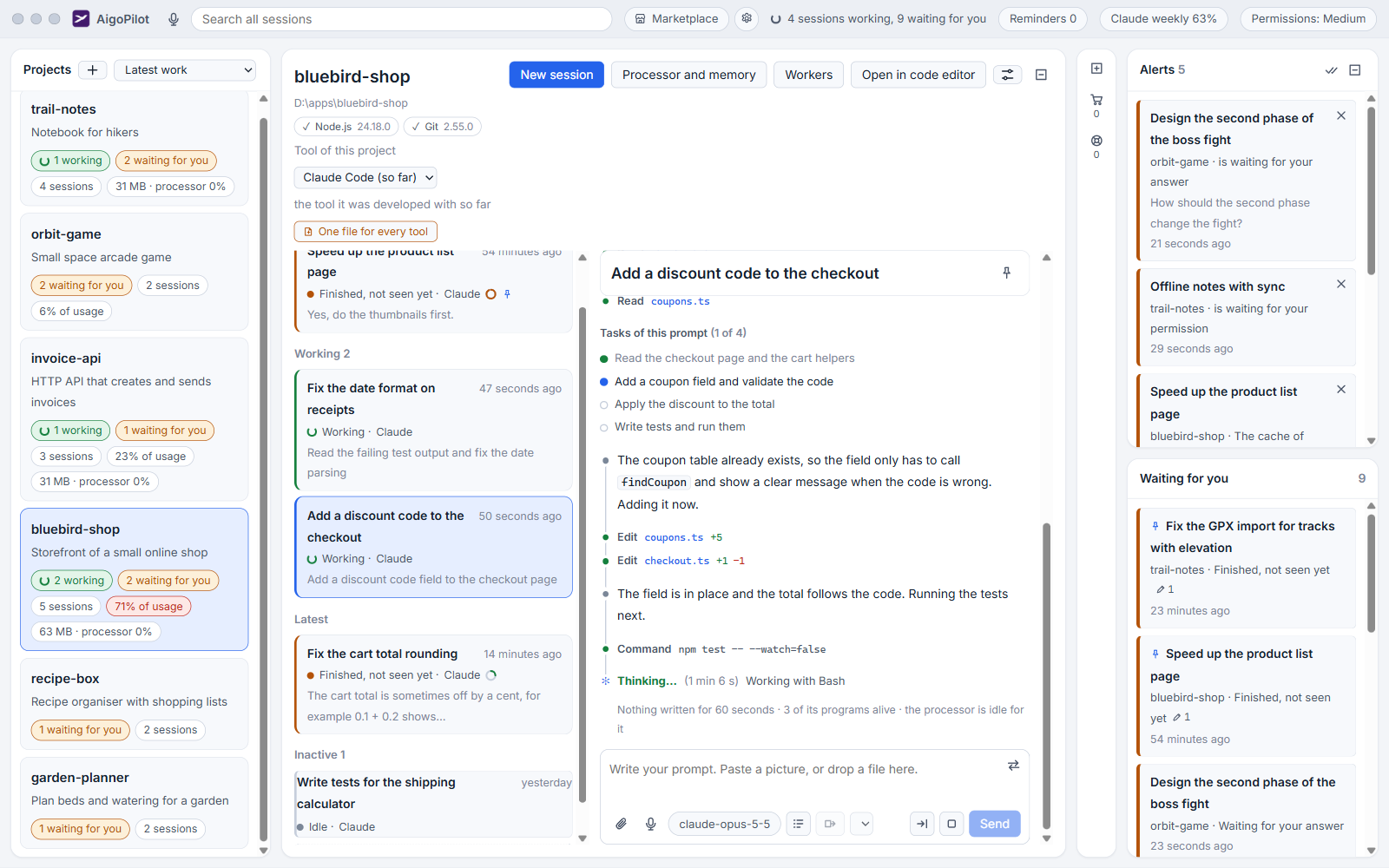
Projects, on the left
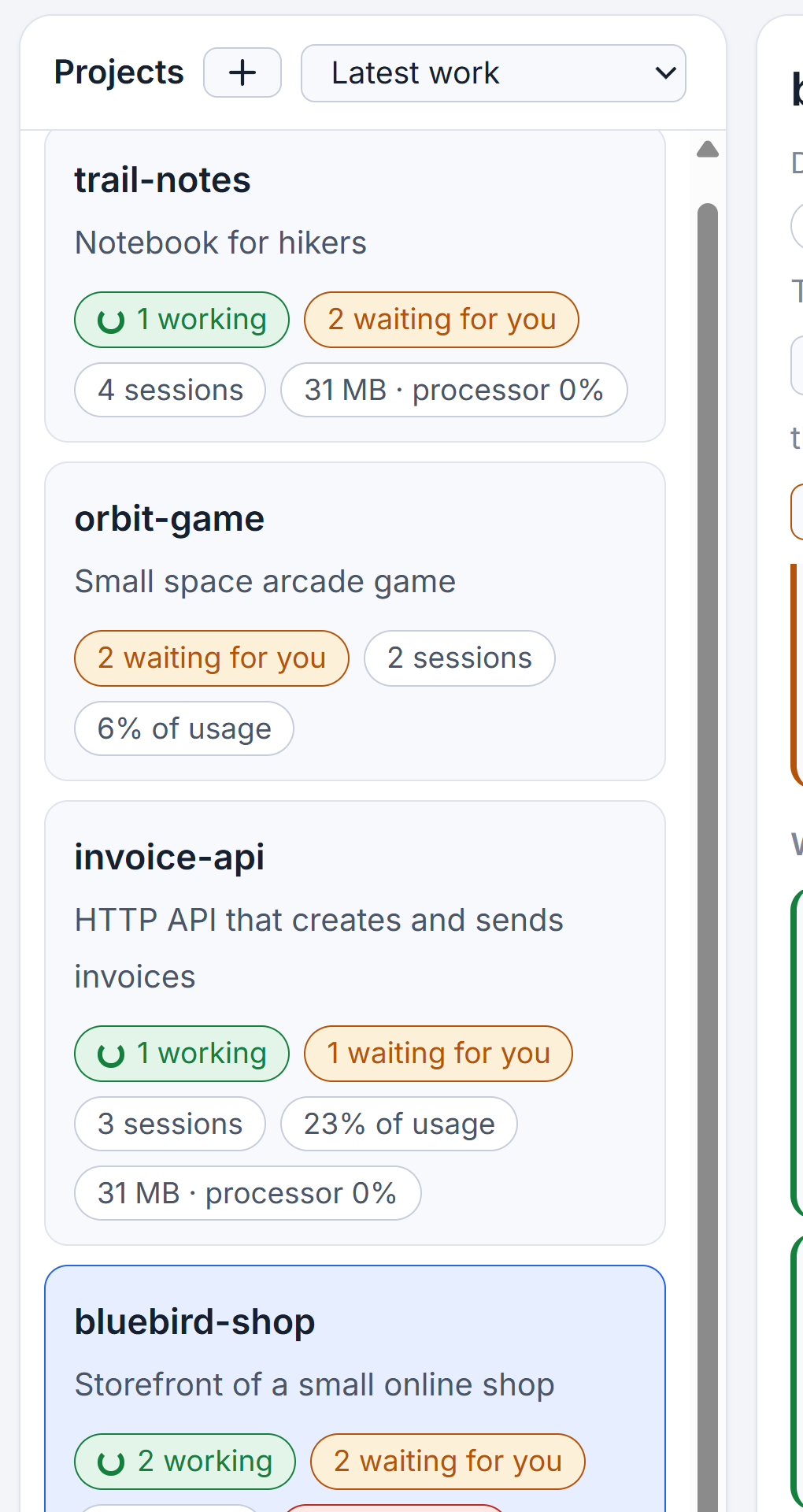
The Projects column lists every project the studio knows. The + at its top opens New project. Next to it is a sort choice, for example Latest work, which can also order by most waiting, name, most sessions or usage.
Each project is a card. It shows the project name, the computer it sits on as a coloured dot and a name, how many sessions are working and how many wait for you, a mail badge if the project has a mailbox, its share of this week's usage, and a memory and processor badge. A card that says No active session means none is working right now, not that the project has no sessions. At the bottom of the list are Chats without a project and Archived projects.
Sessions and the conversation, in the middle
Choose a project and the middle shows its name, its folder, its computer and badges for the programs it needs, such as Node.js or Git, with an Install button beside one that is missing. Buttons follow: New session, Processor and memory, Workers, and for a project on this computer Carry to another computer and Open in code editor.
The session list comes next. Sessions are grouped as Pinned, Working, Waiting for you, Latest, Inactive and archived. Each card gives the first prompt, the last prompt and the state. Until you choose one, the conversation area says to choose a session. Once you do, you see the exchange, the steps the tool took between messages, and the prompt box at the bottom, where you can attach a file with the paperclip, dictate with the microphone, and pick the model and effort.
What is waiting for you, on the right
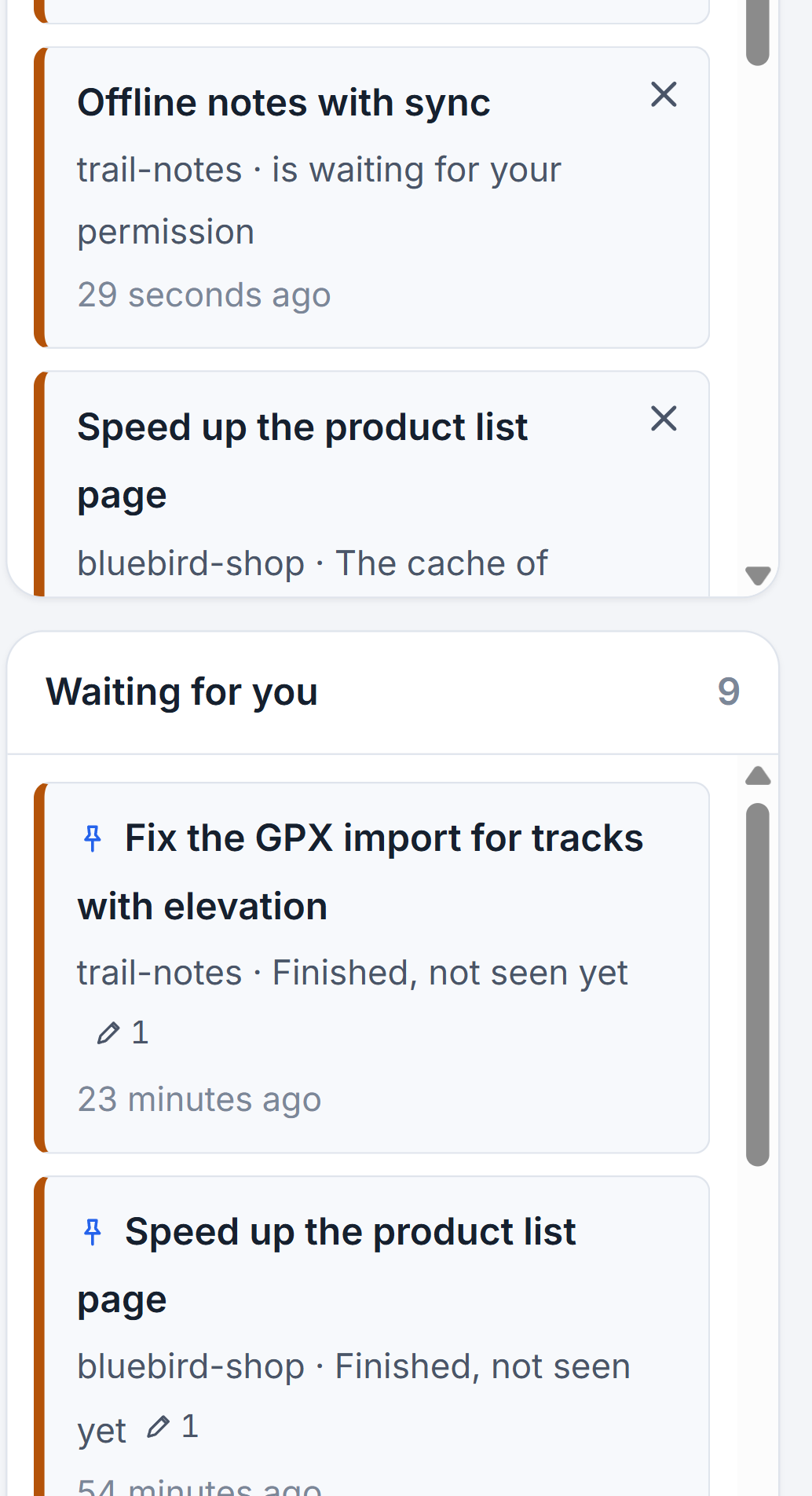
The right edge has an email column for the project mailboxes, then the column of Alerts above Waiting for you. Alerts are things the studio noticed: a limit going up fast, a worker that did not start. Waiting for you is the list of sessions that ask a question, need a permission or have finished and not been looked at.
The top bar
From left to right: the microphone, which starts the voice assistant; Search all sessions, which searches every conversation on the computer; Marketplace; the gear for Settings; counts of working and waiting sessions; Reminders; the usage chip, which opens the Usage window; and the permission chip, for example Permissions: Medium, which opens the window that decides what sessions may do without asking.

Arrange the columns
The gap between two columns is a handle: drag it to change widths. A double click on it puts the widths back. Each column folds into a narrow strip that keeps its signs and counts, with a plus to open it again. The window remembers its arrangement, and the conversation is never squeezed below a readable width. The look of the window, meaning theme and text size, is in themes and text size.
Continue with your first project and first session, or read about the columns and layout in detail.
Questions
Why does a project card say No active session when the project has sessions?
It means none is working at the moment. Idle and finished sessions are still in the project.