
Your first project and first session
From an empty folder to a finished session and the list of files it wrote.
A project in AigoPilot is a folder on one of your computers. A session is one conversation with Claude Code, Codex or Grok that works inside that folder. This page takes you from an empty folder to a finished session and the list of files it wrote.
If you have used the tools before, your old projects are already in the list. Use this page when you want to add a new folder, or when you want to see a session from the start.
Add a project
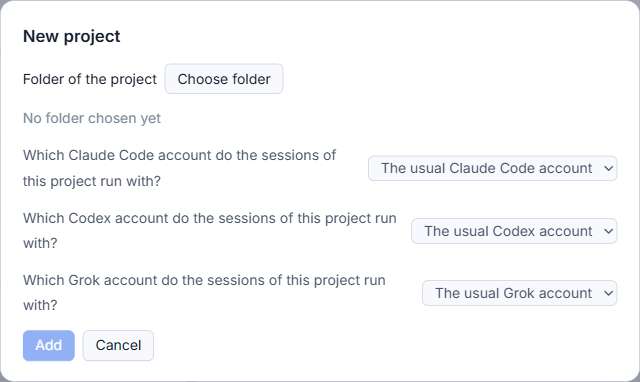
- Press the + at the top of the Projects column. The New project window opens.
- Under Which computer is the project on?, keep this computer, or pick another one that is paired.
- Press Choose folder. The Windows folder window opens. To make a new empty folder, go to where it should live, press New folder, type a name such as
practice-project, and press Select Folder. For another computer, the studio shows that computer's own folders, with Up one folder, Home folder and Make folder. - The path appears under the button, where it said No folder chosen yet. Press Add, which was grey until now.
The project opens at once: its name, folder and computer are at the top of the middle area, with no sessions yet. Its card is in the Projects column, near the bottom until you have worked in it. The project takes the permission mode that is in force for the computer. If you finished the setup, the chip at the top right shows it, for example Permissions: Medium.
Start a session
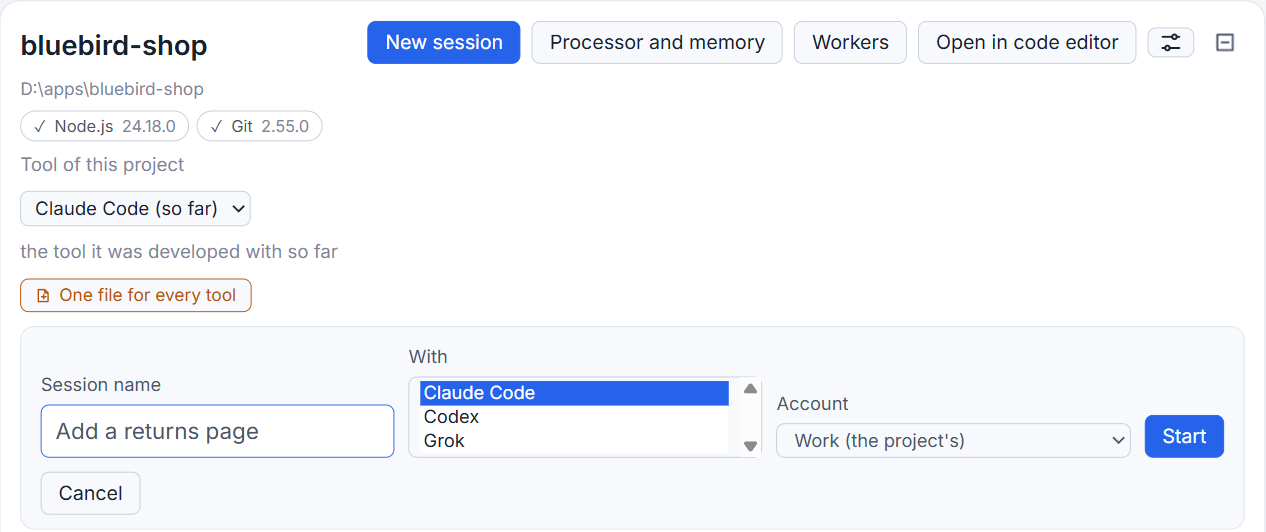
Press New session. A small form opens. Session name is required, and the studio will not start without one. A name you choose now is easy to find later, and the session's header says You chose this name.
The With choice appears when more than one tool is installed on that computer. The first one offered is the tool of the project; a person who has only Codex is never handed Claude Code. If you have several accounts for a tool, a choice of account appears too. Press Start.
Send a prompt
The new session card is marked New session with the tool's name, and the conversation is empty. Type into the box that says Write your prompt. Paste a picture, or drop a file here. The model and effort sit next to the box, for example Opus 5.5 · High. Press Send. Here is a prompt that is safe to try in an empty folder:
Create a README.md with three lines saying this is a practice project, and a hello.py that prints a greeting. Work only in this folder.
Watch it work
The project's card moves to the top of the list with a green working sign, and the session is under Working. In the conversation you see your prompt, the first message of the tool, and a live line of steps, such as the files it edits, while the turn goes on. Stop controls appear beside the box. If the tool needs a permission your mode does not give it, the request shows in the Waiting for you column and on the session; permission cards explains how to answer.
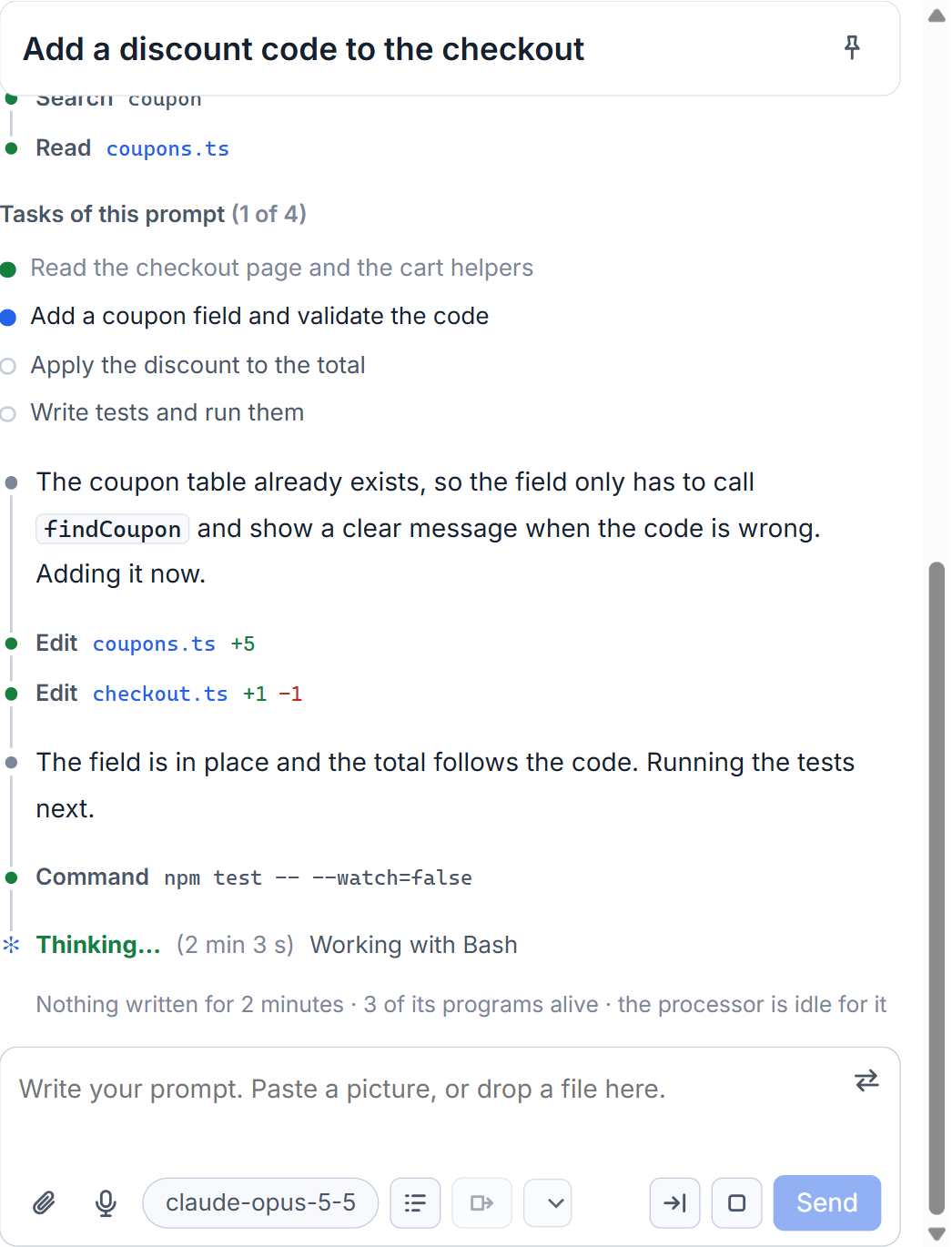
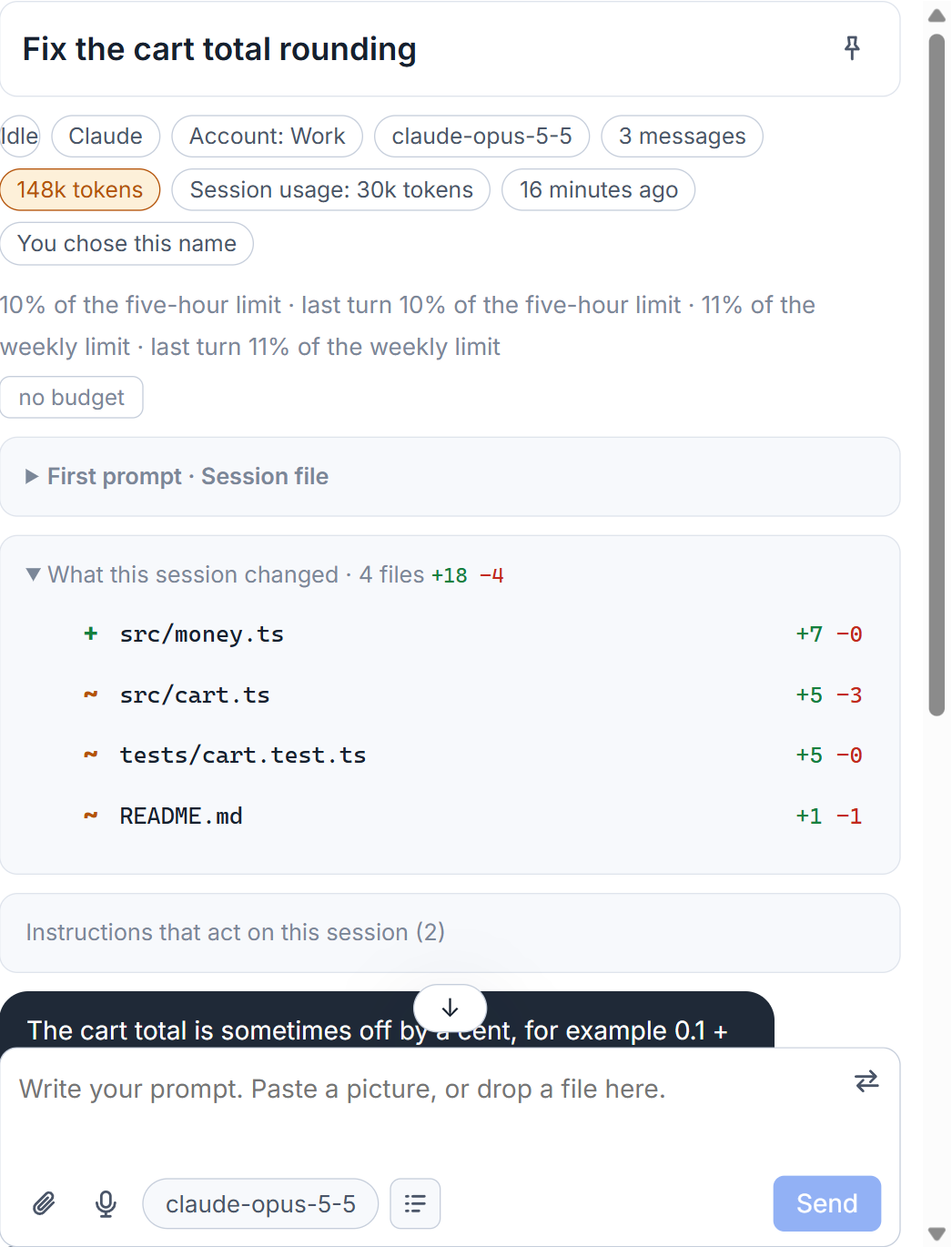
When the turn ends, the state changes to Idle. Open the line that says how many messages came along the way to read every step, including each tool call and its details. The header of the session shows the tool, the model, how many messages there are, how much of the context window is used, and who pays: paid by: subscription when it runs on your own subscription.
See what it changed
Open What this session changed above the prompt box. It lists the files the session made or changed, each marked new, changed or deleted, with the change of each file. Without git in the folder, the studio rebuilds each change from the session's own edits and tells you so. It never writes to git. Read more in what a session changed.
Next, starting sessions covers models and accounts, and continue a session shows how to pick up tomorrow.
Small tips
Type a path into the Windows folder window
In the Windows folder window, type a folder path into the Folder box at the bottom and press Enter to jump straight there. Then press New folder to make the project's folder in that place.
Questions
Why will AigoPilot not start my new session?
A session needs a name. Type one in the Session name field and press Start.