
Continuing an earlier session
There is no Continue button. Write in the old session and it goes on from its last line.
An earlier session is never closed for good. Open it in AigoPilot, write a prompt in its box and send, and the studio starts the tool again with that session's history and puts your prompt in. There is no separate Continue button. The conversation goes on from the last line, whether you left it ten minutes ago or three weeks ago.
This works for sessions the studio started and for the sessions of its other computers. A session that another program started, such as VS Code, needs one more click first; that case is in Sessions you started in VS Code or a terminal.
Continue a session
- Open the project and click the session in the list. Archived ones are behind the line at the end of the list.
- Read the end of the conversation to remember where it stopped.
- Write your prompt in the box. Choose a model or effort first if you want a different one.
- Send it.
The session continues with the account that holds its transcript, even if the project's account is another one. The studio does not move a session to another account by itself. A session that waited at the usage limit is continued the same way, or by itself as described below.
If the file of the session has been deleted, the studio says so. You can still read the history but cannot continue it.
When it was open somewhere else
If another program is using the session at that moment, or wrote to its file a few seconds ago, the studio stops before sending. It tells you the session is open in another program, and that continuing from two places splits its history in two. Your prompt is kept. Close the session in the other program and press Take it over and continue, or press Cancel to leave it.
A session that came from another computer asks once as well. It says how many messages it holds and how large it is, and that your first message reads the whole conversation to the model again, which costs part of your limit. Press Continue it here to agree.
Long sessions and cold caches
Claude keeps a finished conversation in a cache for five minutes or an hour, depending on the request. Continue after that and the whole history is read again at full price. The ring beside a finished Claude Code session shows how much of that time is left; The cache countdown and the reminder explains it.
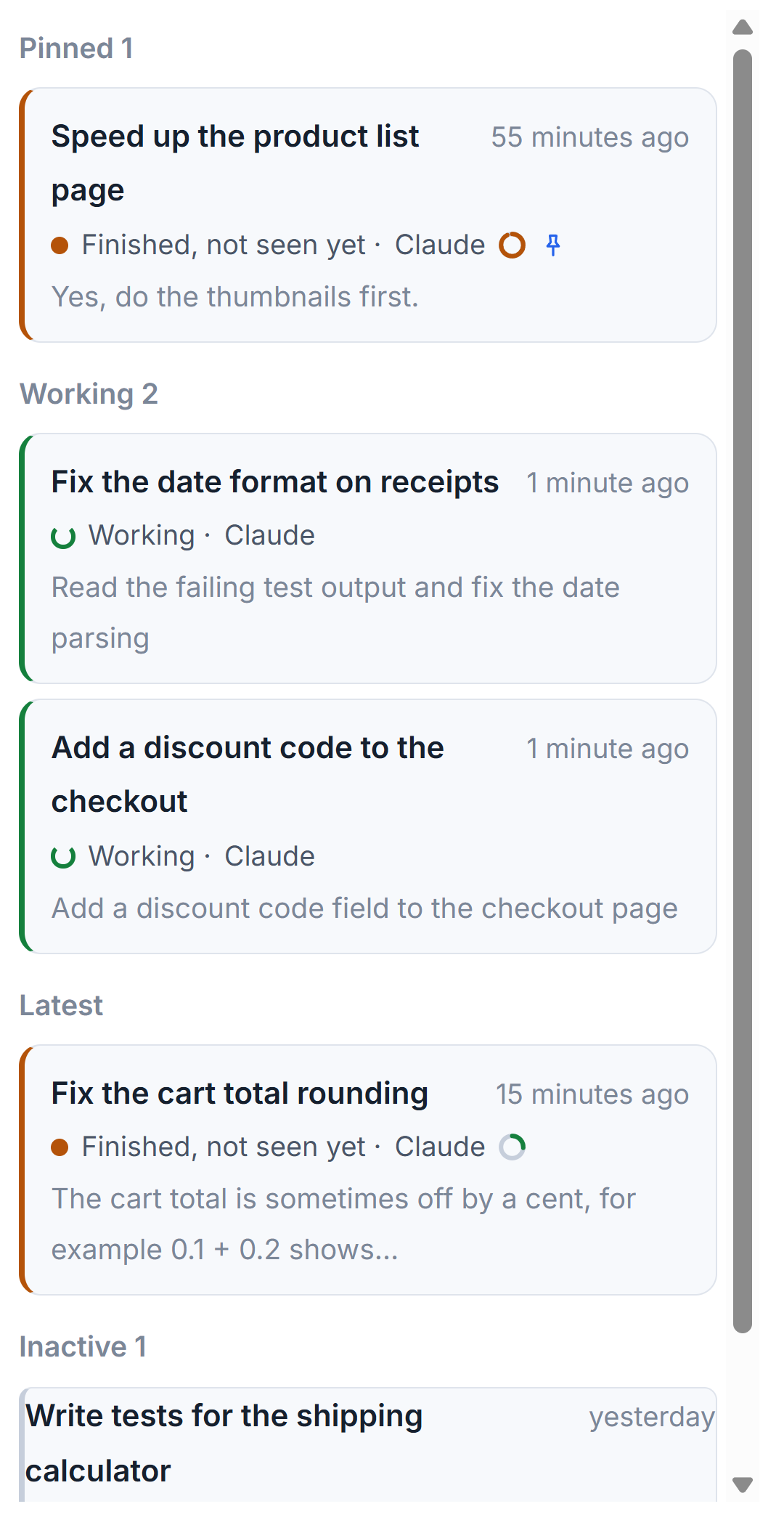
When a session is heavy, from about 60 percent of its window, the studio suggests Continue in a fresh session. The old session writes a handover and a new session starts from it, so you pay for a short summary instead of the long history. See Continue in a fresh session with a handover.
A session that hit the usage limit
When a Claude Code session reaches the usage limit of its account, its row says so and shows the time the limit resets. By default the studio continues the session from where it stopped one minute after the reset. It never changes the model or the account to do it. The studio, or its engine on that computer, must be running at that moment.
You choose the behavior in three places:
- Settings, How sessions work, When the usage limit resets: Continue by itself, Continue important projects only, or Wait for me.
- The settings of one project, When the limit resets, overrides the general choice for that project. The tick Important project in the same place is what the middle choice looks at.
- On the session itself, a button says Not this time when it will continue, or Continue when it resets when it will not.
If Claude Code did not say when the limit resets, the studio will not continue the session by itself. More in When you hit a usage limit.
Closing the window while sessions run
The red light at the top left, and the close button of the window, only hide it. The sessions go on, and the studio stays in the tray. To leave for real, use Quit in the tray menu or in Settings. If a session is working or waiting on you, the studio asks first, in a window titled A session is still working:
- Go on in the background keeps the work in progress running. The next time you open the studio you see the same sessions.
- Stop them all closes every session now. The conversations stay and can be continued later.
If something closes the studio without asking, a session shows Stopped unexpectedly and the next prompt continues it from where it was.
Small tips
Stop one session from continuing after a limit
When a session at the usage limit says it will continue by itself, the button Not this time cancels that for this session only. Continue when it resets turns it back on.
Set the limit rule for one project
The settings of a project have their own When the limit resets choice, which wins over the general setting. Use it to let one project continue by itself and keep the rest waiting for you.
Quit and leave the work running
When you quit while a session works, the window A session is still working offers Go on in the background. The sessions in progress keep working, and you see them when you open the studio again.
Questions
Can I continue a session from weeks ago?
Yes, as long as its file still exists. The history is read again, which costs more when the tool's cache has expired, so for a long session a fresh session with a handover is cheaper.
Does a continued session use another account?
No. A session always goes on with the account that holds its transcript. The studio never changes the account or the model by itself.