
When you hit a usage limit
A Claude Code session can go on by itself a minute after the limit resets, and you choose per project whether it should.
Partly built. Continuing a Claude Code session after a reset, the budget of a session and the guard against sudden usage are built and tested with the studio's stand-in for the tools. None of them has been seen handling a real limit or a real runaway session yet.
When a Claude Code session reaches the usage limit of its account, the studio tells you when the limit resets and, if you allow it, continues the session by itself a minute after. This page covers that, the alerts that warn you before the limit, the guards that hold a session that spends too much, and what to do when you have more than one account.
A session that hit the limit
The session's state reads Reached the usage limit, and a line in its conversation says when the window resets. It takes one of three forms:
- Reached the usage limit of the account. It resets Thursday at 14:00, and AigoPilot continues it a minute later. A button, Not this time, cancels that for this session.
- ... AigoPilot will not continue it by itself. A button, Continue when it resets, turns it on for this session.
- Claude Code did not say when it resets, so AigoPilot will not continue it by itself. Without a time there is nothing to wait for.
When the time comes, the studio gives the session a short prompt telling it that the limit has reset and to go on from where it stopped. This works even if the program of the session ended meanwhile, as long as the studio or its engine is still running. It does not happen for a session you have gone on with somewhere else. The studio never changes the model or the account to get past a limit.
Choose the default in Settings, under When the usage limit resets: Continue by itself, Continue important projects only or Wait for me. A project can differ: its settings have When the limit resets with As the whole app, Continue by itself or Wait for me, and a box Important project that the middle choice looks at.
Warnings before the limit
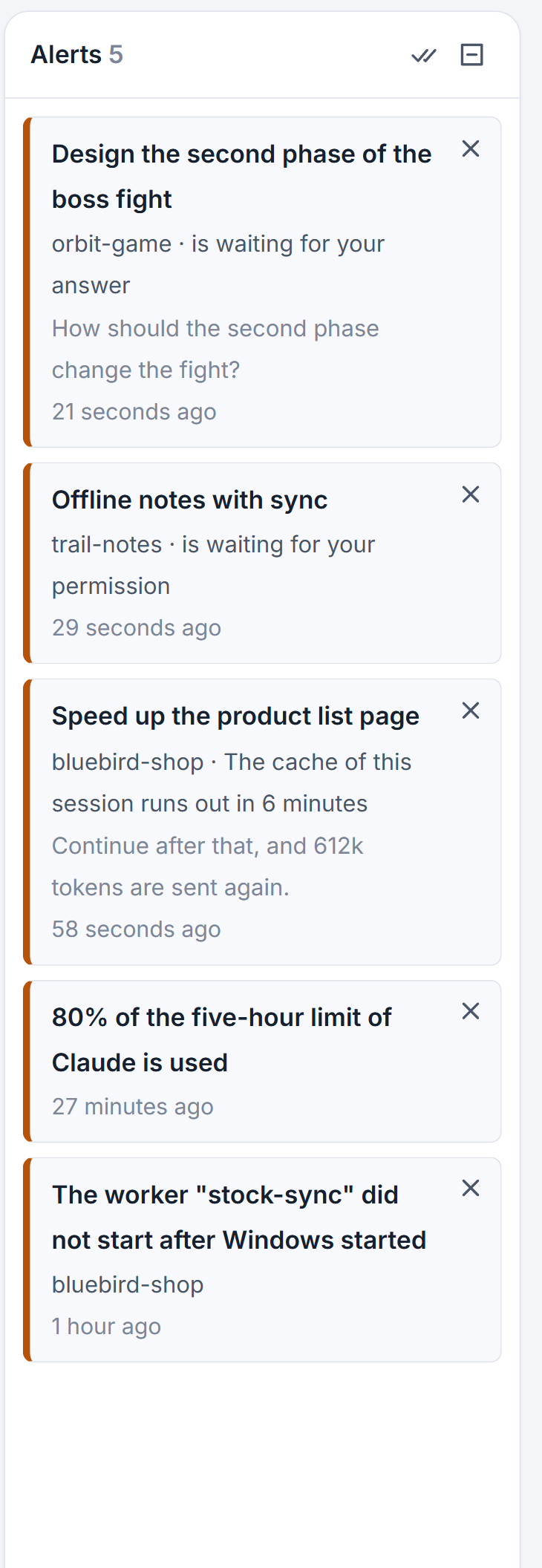
The column of alerts, and the notices if you keep them on, tell you at 80 and at 95 percent of a window, saying how much of which limit of which account is used. They also tell you when a limit jumped a lot between two readings, when an account went into paid extra usage, when the reset of a window moved, and when a model has no known price. Clicking one opens the Usage window. The notices are switched in Notices under More: reached the usage limit of the account, and and when the account has used 80 and 95 percent of a limit.
Codex works differently at its limit. When the plan window of a Codex account is used up, going on would spend credit you bought, so the studio holds the prompt and shows Spend the credit. See Codex in the studio.
Hold a session that spends too much
Open a session and click the small chip in its usage line, which reads no budget. You can set a budget as a percent of the weekly limit of the account. With Hold its turn when it passes the budget ticked, a turn that runs in the studio stops at the budget. Its program is not closed, and it goes on with your next prompt. A session paid with a key gets a budget in dollars instead.
The studio also watches for sudden use. When an hour of a session is worth more than ten times a usual hour of its own over the last seven days, and more than a dollar, an alert comes. By default the turn is held as well. Untick Hold a session that suddenly uses more than ten times what it usually does in Notices to get the alert alone.
When the account is full and you have another
With several accounts the studio still switches nothing for you. A session keeps the account whose folder holds its transcript, so it cannot move to another. To go on with another account, change the project's account for that tool in the project's settings, or pick the other account in the New session form, and start a fresh session. A handover carries the work across. If the old session cannot write one because it is at its limit, a band offers to start the new session from the studio's own record.
Small tips
Change what happens for one session
A session at its limit shows a button, Not this time, or Continue when it resets, depending on the default. It changes the choice for that session only.
Mark a project important to continue only those
Set the default to Continue important projects only, then tick Important project in the settings of the projects that should go on by themselves.
Set a budget from the chip in a session
The chip that reads no budget in a session's usage line opens a field for a budget in percent of the weekly limit. Tick Hold its turn when it passes the budget to make it stop there.
Questions
Will AigoPilot switch to another account when mine is full?
No. It never changes the model or the account by itself. Start a fresh session with the other account instead.
Does the session continue if I close the studio?
It continues if the studio or its background engine is running when the limit resets. The quit window offers to let work go on in the background.