
The usage page
Percent of the limit comes first, dollars come after it and are marked as value at API prices that were not charged to you.
The Usage window answers three questions: how full are my limits, which project is using them up, and what did one session or one turn take. It shows the percent of a limit first. Anything in dollars comes after it and is marked as a value at API prices, because a subscriber is not billed by the token and a big dollar figure reads like a bill that does not exist.
The counts come from the session files on the computer you are looking at. The percents are whatever Claude Code and Codex report about your accounts.
Open it and read the limits
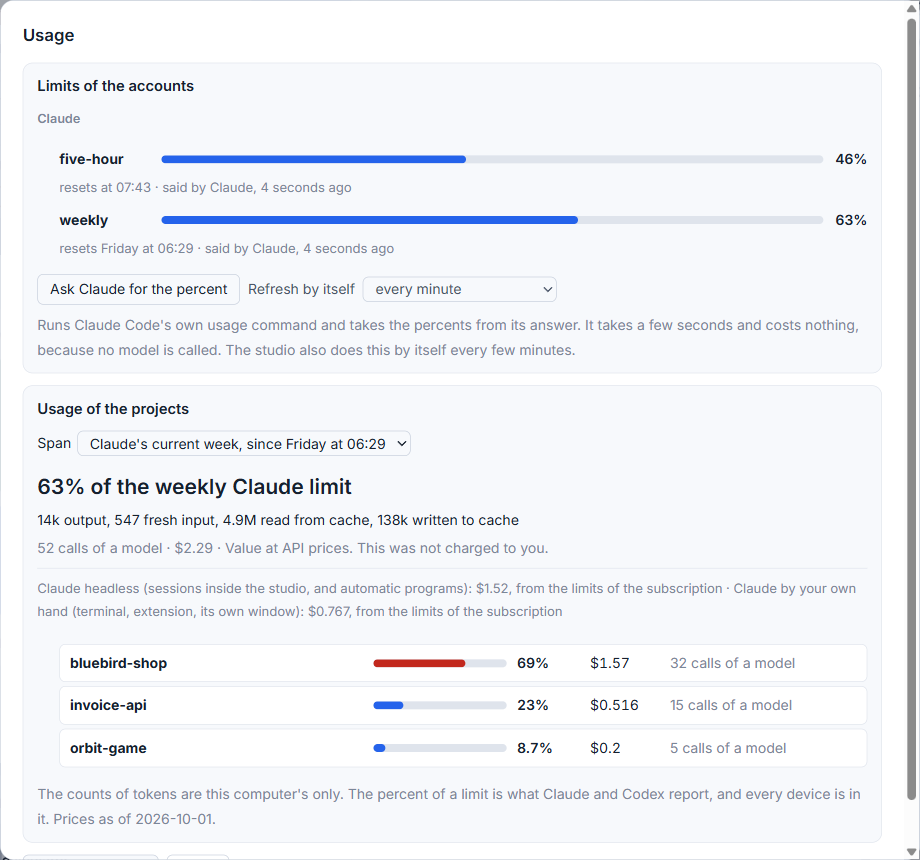
Click the limits chip in the top bar (Your limits in the title bar), or click an alert about a limit. The first part, Limits of the accounts, has a block for each tool and account, and in it one row for each window, such as five-hour and weekly. A row shows a bar, the percent, when the window resets, and where the number came from, for example said by Claude with how long ago, or from the files of Codex.
When the pace would fill the window before it resets, the row adds at this pace full in about 5 hours, and it adds about N tokens for each percent when the studio can tell. A row past its warning mark has a button, Close the warning until it resets. A folded part, History of the limits, lists days on which a reset moved, a limit rose a lot between two readings, or an account went into paid extra usage and back.
Which project is eating the week
The second part, Usage of the projects, starts with a Span list: Claude's current week, Codex's current week, the last 24 hours, 7 days or 30 days, from the start, or from a day to a day (type the two dates as 2026-10-01). With a weekly span the big number at the top is the percent of that limit, for example 41% of the weekly limit. Under it a line says how the tokens split: output, fresh input, read from the cache and written to the cache.
Every project follows as a row with a bar and its share of that span's usage. Click a project to see its sessions, and click a session to see its threads: the session itself, and each sub-agent with its model. A small button beside a session, Open this session, goes to it. When four or more projects took less than half a percent each, they fold into one line, such as 4 smaller projects, that you can open.
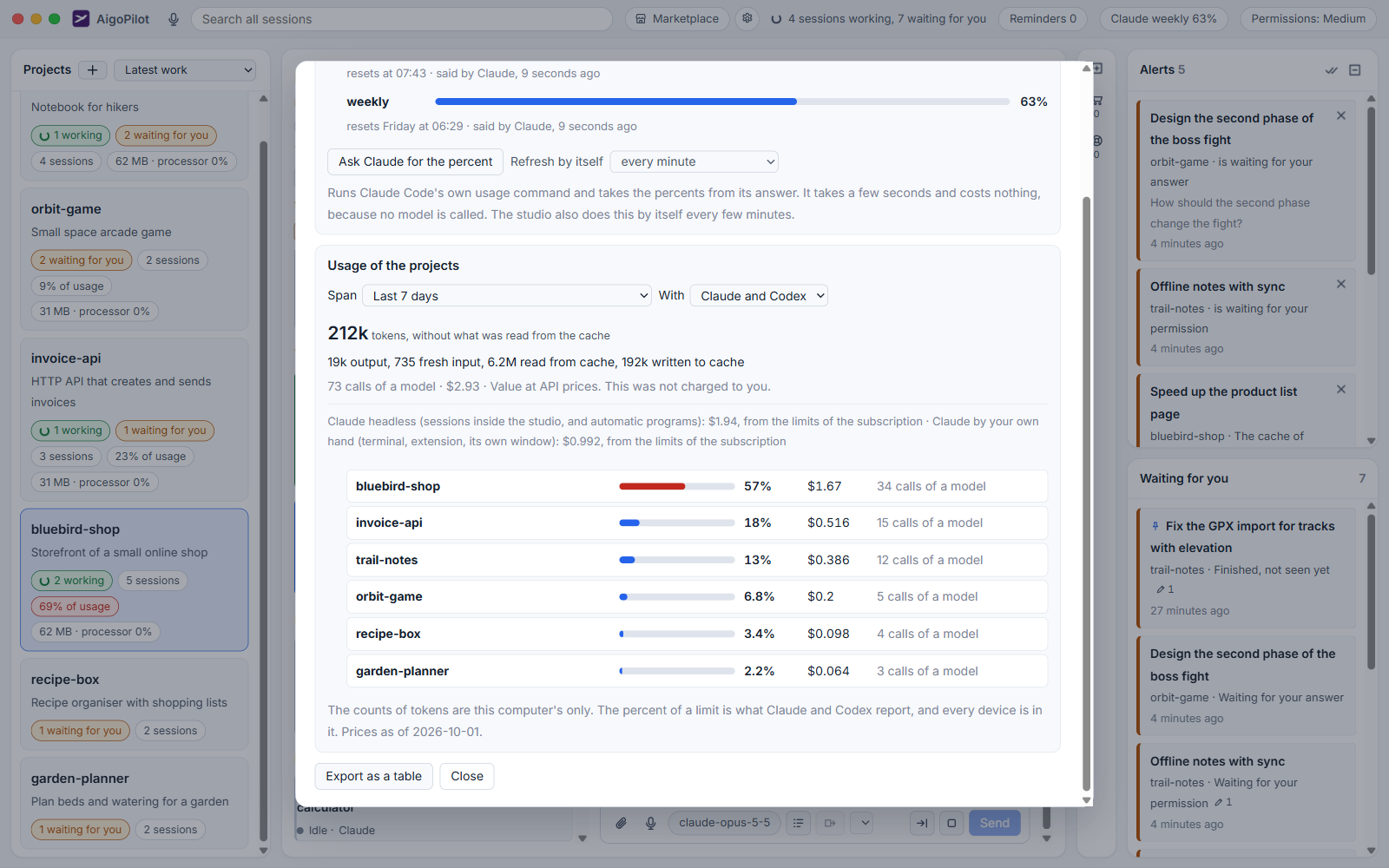
The same share shows on every project card in the left column, as % of usage, and the list of projects can be sorted by Most usage.
What one session and one turn took
In the header of a session a line says what it took of the weekly limit, and what its last turn took: last turn 3% of the weekly limit. This is an estimate. The percent the tool reported for the window is divided among the sessions of this computer by what their usage is worth. Usage of the same account on other devices is not in the split, and what was spent after the last report is not in it yet.
Money, labelled
Each row has a value in dollars, and the page says Value at API prices. This was not charged to you. A model the studio has no price for shows price unknown, and its tokens are still counted. The studio does not yet turn a project's share into dollars of your own plan.
Other computers, and export
Once your studio has a second computer, tabs at the top of the window choose whose ledger and limits you read. The counts of tokens are that computer's own, as it counted them, while the percent of a limit is what the tool reports and includes every device.
Export as a table writes a CSV file into the studio's folder, with a button Show it to find it. It has one row for each session and day of the chosen span: the day, project, session, tool, the number of calls, the five kinds of tokens, and the value at list prices, marked as not charged. Behind the page is a ledger that records each call of a model once, under the provider's own request id, with sub-agents kept under their parent session.
Small tips
Look at any span of days
Choose From a day to a day in the Span list and type two dates as year, month, day, for example 2026-10-01. A date that is no date is refused with a reason.
Jump from a usage row to the session
Open a project in the Usage window and each of its sessions has a small button, Open this session, that goes straight to the conversation.
Close a limit warning until it resets
A window past its warning mark has the button Close the warning until it resets. The warning stays closed until the window resets.
Sort projects by Most usage
The sort list at the top of the Projects column has Most usage. It puts the projects that take the largest share of the usage first, each with its percent on the card.
Questions
Are the dollar figures what I paid?
No. They are the value of the calls at the provider's list prices, and the page says that this was not charged to you. A subscriber pays the plan, not by the token.
Why is a project's share only an estimate?
The percent the tool reported for a window is divided among the sessions of this computer by what their usage is worth. Usage of the same account on other devices is not in the split.