
First-run setup: Simple and Advanced
A short setup that ends with one list you read and confirm, and that you can run again later.
The first time AigoPilot opens, it walks you through a short setup. It looks at the computer, asks a few things, and ends with one list of every permission and setting that you read and confirm. Until you confirm that list, the studio stays in its safest permission mode.
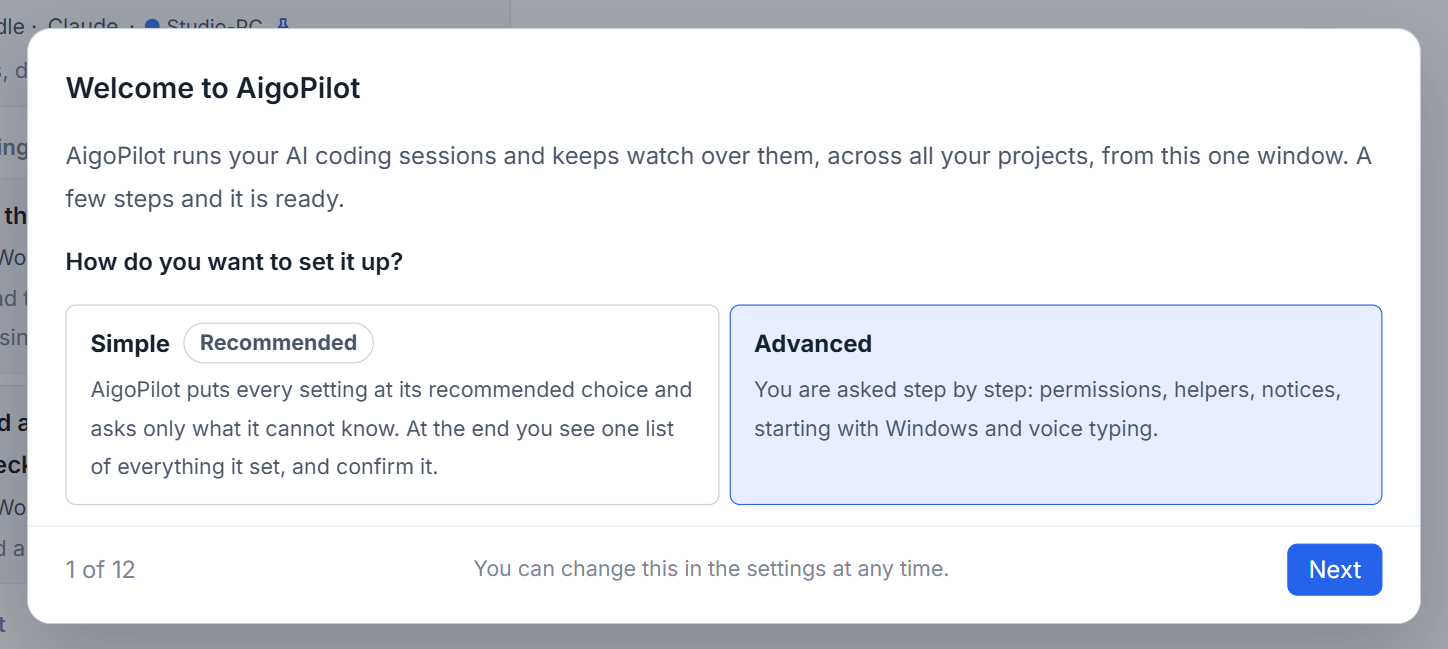
You choose between two ways on the first page. Simple takes six pages. Advanced takes twelve and adds permissions, helpers, notices, starting with Windows and voice typing. Everything the setup decides can be changed later in the settings.

Choose Simple or Advanced
The first page is titled Welcome to AigoPilot. Simple is marked Recommended and is selected from the start: AigoPilot puts every setting at its recommended choice and asks only what it cannot know. Advanced asks you step by step.
The six pages of the simple way
- Welcome: choose the way and press Next.
- The AI programs on this computer: each of Claude Code, Codex and Grok is listed with its version and, when you are signed in, a green tick and the account. One is enough to start.
- Your projects: projects you already worked on with the tools are found from the history those tools keep, and counted ("8 projects and 13 sessions found"). Nothing in that history is changed. Add a project folder adds one that no session has used yet.
- Your phone (optional): the six digits to pair the iPhone app, and an optional relay address for reaching the studio from outside your home network.
- Other computers (optional): pair a Mac or a second Windows computer that has the agent installed.
- What is set: the list to read.
The last page is the one that matters. A red box says that an AI can make mistakes, and that what it does without asking is your responsibility. Below it, two lists show the permission mode, Medium by default: what is done without asking you (reading, changing and deleting files inside the project, running commands inside it, reading web pages) and what always asks first (anything outside the project, anything that cannot be undone, installing programs, added tools). Beside them are the other settings, each with its value. Nothing counts until you press I have read this, start.
When a program is missing
On a computer with none of the three tools, each row says Not on this computer, with one Install button. Pressing it opens a box that names every program it will install, the maker's own installer, the address the installer comes from and the folder it goes into. Untick what you do not want, then press Install, or No to leave it.
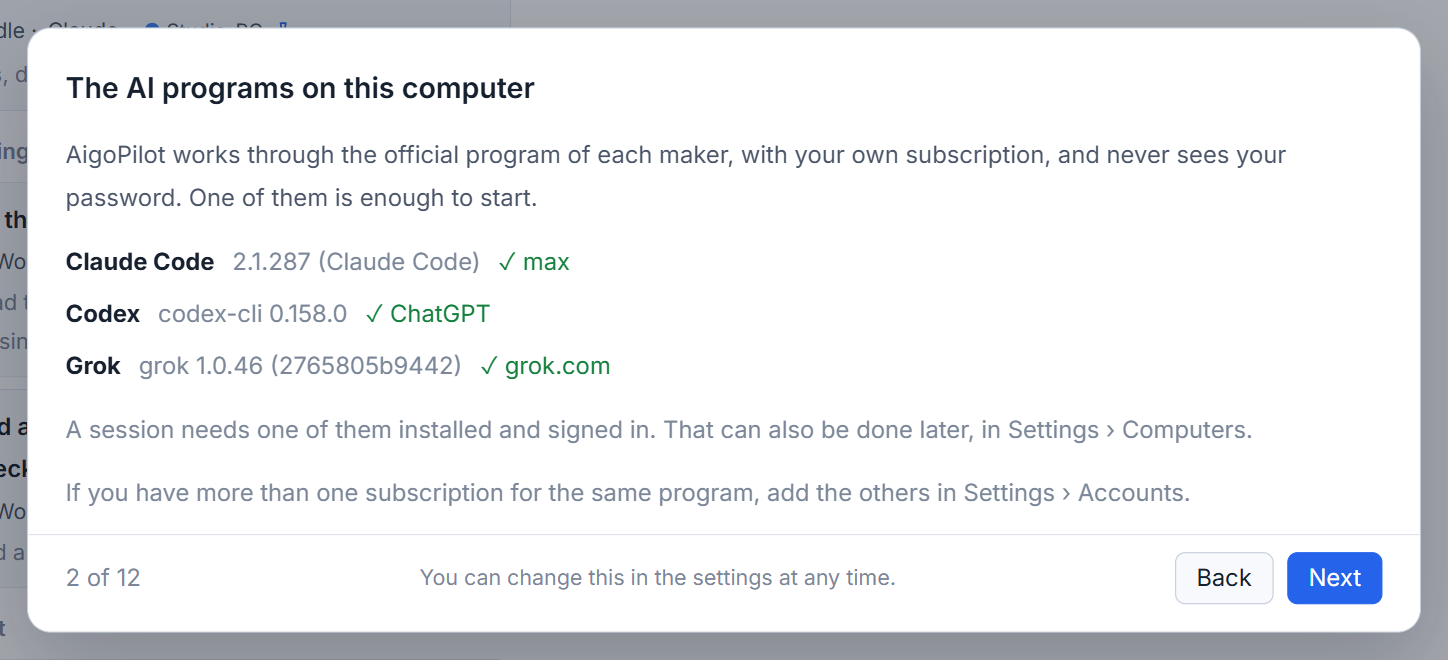
When the install ends, the row shows Nobody is signed in and a Sign in button. That opens the tool's own sign-in, which continues in your browser on the maker's site. AigoPilot only opens it. A green tick means the tool is ready. If something goes wrong, see a tool is missing or asks you to sign in.
The six extra pages of the advanced way
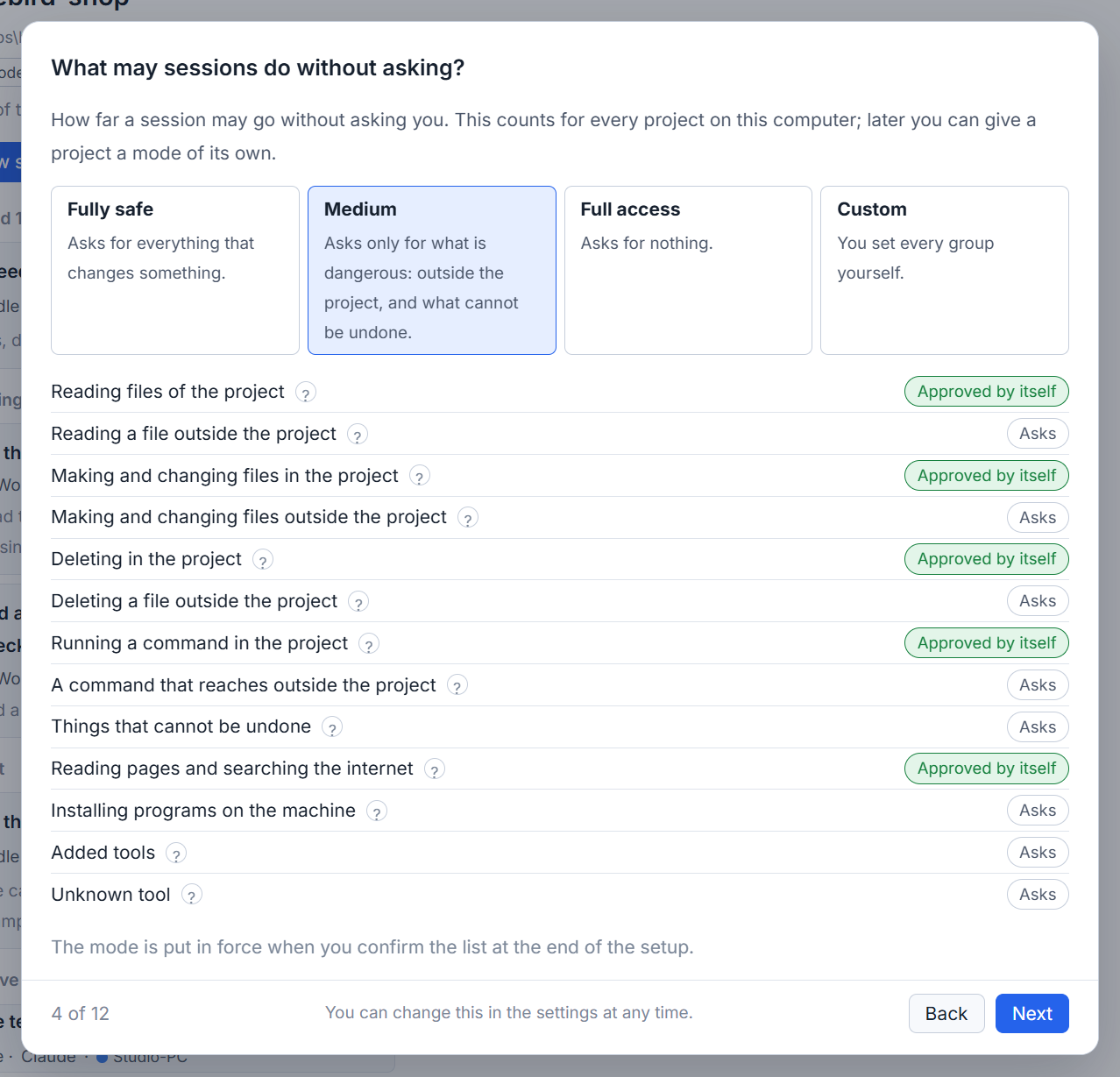
- What may sessions do without asking? Four modes: Fully safe, Medium, Full access and Custom, with a table of thirteen lines showing which are approved by themselves and which ask. See permission modes.
- How sessions hand work to helpers: small jobs to subagents and big ones to separate sessions (the default), always separate sessions, or always subagents.
- When a usage limit resets: continue by itself (recommended), only for projects you marked important, or wait for you.
- Notices and sound: how much a Windows notice shows, which kinds of alert make a sound, and quiet hours.
- Starting, and staying in the background: start with Windows, and keep the computer awake while a session works.
- Voice typing: on this computer (free, and your voice stays on it) or through OpenAI with your own key.
Run it again
Open the settings, find Run the setup again under More, and press it. The simple way does not overwrite a setting you have already made, and the closing list shows what is in force. If you quit the setup half-way, it opens again from the first page with your way chosen. The settings you made on the way are kept, because each page saves its setting at once.
Questions
Can I change the setup choices later?
Yes. Every setting is in Settings, and Run the setup again under More opens the whole setup.
Why is the studio in a safe mode before I confirm the list?
Until you confirm the closing list, only the fully safe permission mode is in force, so a new install does nothing that changes anything unasked.