
The prompt box
The box under every session remembers what you wrote, shrinks big pictures, and holds your next prompts in line.
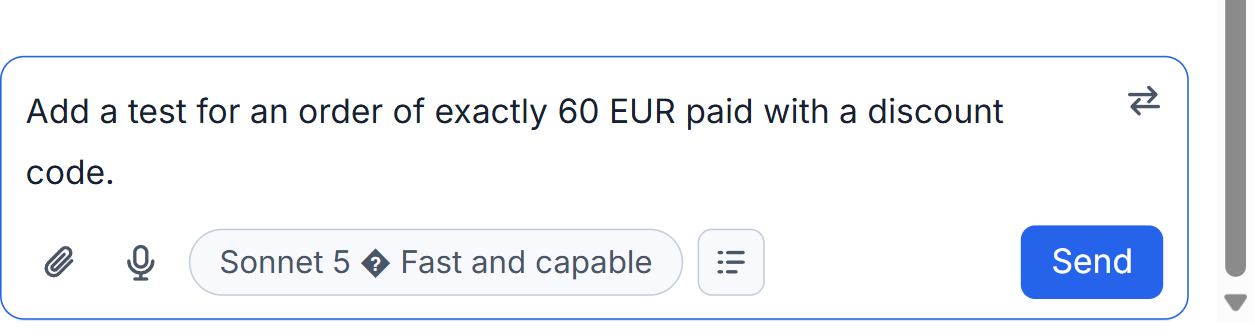
The prompt box is where you write to a session. It sits under the conversation, with one row of controls below the text: paperclip, microphone, model and effort, plan mode, a sign for a fresh session, the stop buttons while a turn runs, and Send.
It works for every session the studio runs, whether the tool is Claude Code, Codex or Grok. A session that belongs to VS Code or a terminal has a shut box until you bring it into the studio (see sessions outside the studio).
What the box remembers
Whatever you type is saved within half a second, for that session alone. Close the studio, or let it crash, and the text is there when you come back. Only sending it, or your own hand, takes it away. The box grows to fifteen lines before it starts to scroll.
The key that sends is a setting: under Writing and sending in Settings you choose between "Enter sends, Shift+Enter makes a new line" and "Ctrl+Enter sends, Enter makes a new line". A small button with two arrows in the corner of the box turns the direction of what you write between automatic, right to left and left to right, for this session only.
Attach files, pictures and web pages
Click the paperclip and choose A file or picture or A web page. You can also drop a file anywhere on the window, or paste a picture with Ctrl+V. Pasted text always stays text; only files and pictures become attachments.
Each attachment is a small label with its name, its size and, once you have sent it, whether it arrived: Ready, Sent, Arrived or Did not arrive. One click on the label removes it from the box.
A picture whose longest side is over 2000 pixels is made smaller before it goes to the model, and the label says from what size to what. Your original file is kept as it was. For a web page, type the address and click Fetch; the studio brings the page in as a file. Some sites refuse it, and then the box says so and suggests saving the page with Ctrl+S and dropping that file instead. Documents and scans are covered in files as text.
The rest of the row
The microphone starts voice typing; the words land in the box where the cursor is. The model and effort choosers and the plan mode sign are explained in model, effort and plan mode. The sign with an arrow into a box continues the work in a fresh session (handover). Type / as the first character to list the tool's own slash commands.
Prompts in line
If you send something while the session is working, it does not interrupt. It joins Prompts in line, drawn above the box, and goes out when the turn ends. The line is held by the engine, not by the window, so it still goes out if you closed the window.
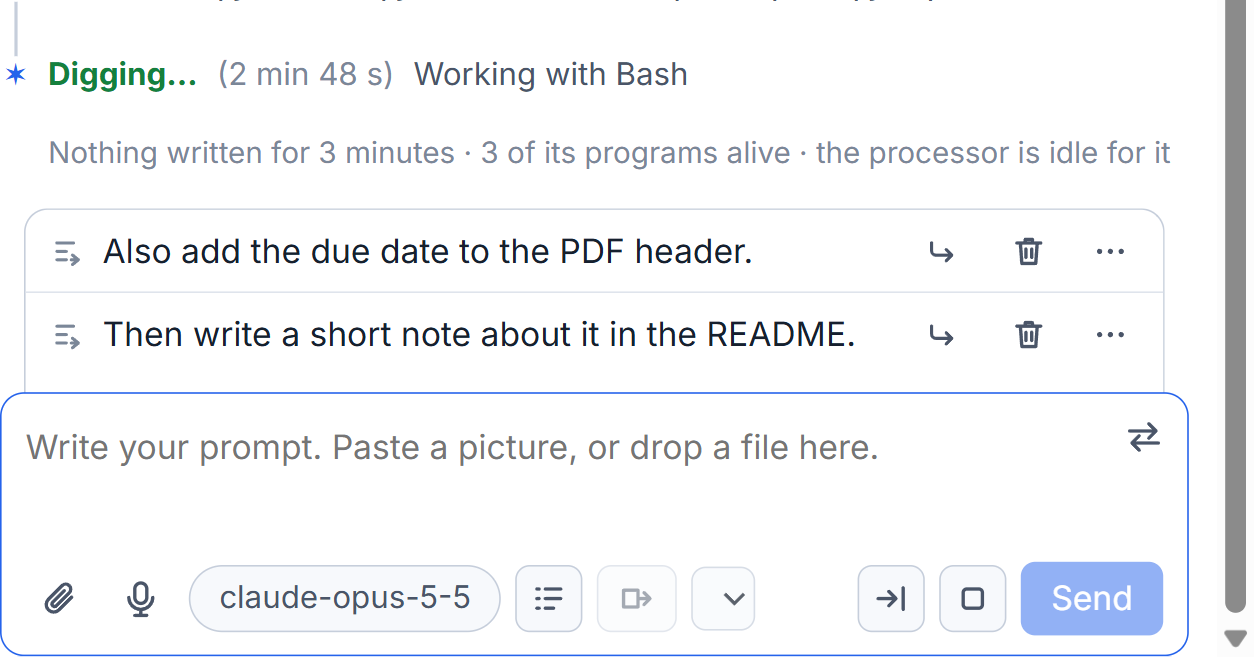
Each prompt in the line has these actions:
- Send now pushes it into the turn that is running instead of waiting. It works for Claude Code and for Codex.
- The bin icon takes it out of the line.
- The three dots open Edit (the prompt goes back into the box and keeps its place), One place forward, One place back and Send in a new session.
- The same menu has Turn the line off. It is also a setting, Line of prompts: with it off, a new prompt is sent at once.
When you stop a turn, or it ends in an error, the line is held so a stale prompt does not fire into the wrong state. A row says so and has a Go on button. More on stopping in stopping a session.
What each prompt says about itself
A prompt you sent shows its stage under the bubble until the tool has taken it: Sending, In line, Sent, not confirmed yet. A prompt that was confirmed shows nothing. One the tool never took reads Did not arrive or Was not sent, and carries two buttons, Send again and Copy. It stays where you sent it, so the words are not lost.
Prompts the studio writes itself, such as the request for a handover or "the usage limit has reset, continue", appear as a line that opens, worded "AigoPilot told the session: ...". They are not shown as if you had typed them.
Small tips
Drop several files on the window at once
Every file you drop on the studio window becomes its own label in the box, with its size. You do not need to open the paperclip menu for each one.
Send a waiting prompt in a new session
In the three-dot menu of a prompt in line, choose Send in a new session. A side question then runs on its own while the main session carries on.
Edit a queued prompt without losing its place
Edit puts the waiting prompt back into the box. When you save it, it takes the same place in the line, so you can fix a typo without sending it to the back.
Questions
Can I write the next prompt while the session is still working?
Yes. It joins the line above the box and goes out when the turn ends, even if you closed the window. Send now pushes it into the running turn instead.
Does AigoPilot change my pictures before sending them?
A picture whose longest side is over 2000 pixels is made smaller for the model, and the label says from what size to what. Your original file is kept as it was.