
Attach documents: PDF, Word, Excel and PowerPoint as text
A file becomes text on your computer before any model sees it, and the box shows its tokens before and after.
When you attach a PDF, a Word file, an Excel workbook or a PowerPoint deck to a prompt, AigoPilot turns it into plain text on your own computer and gives the session that text, not the file. Under every file the box says how many tokens the text costs against how many the original would have cost. A session that reads a clean text spends fewer tokens than one that is handed a whole document, and it reads tables as tables.
The conversion needs no network. Nothing leaves the computer at this step.
Attach a file
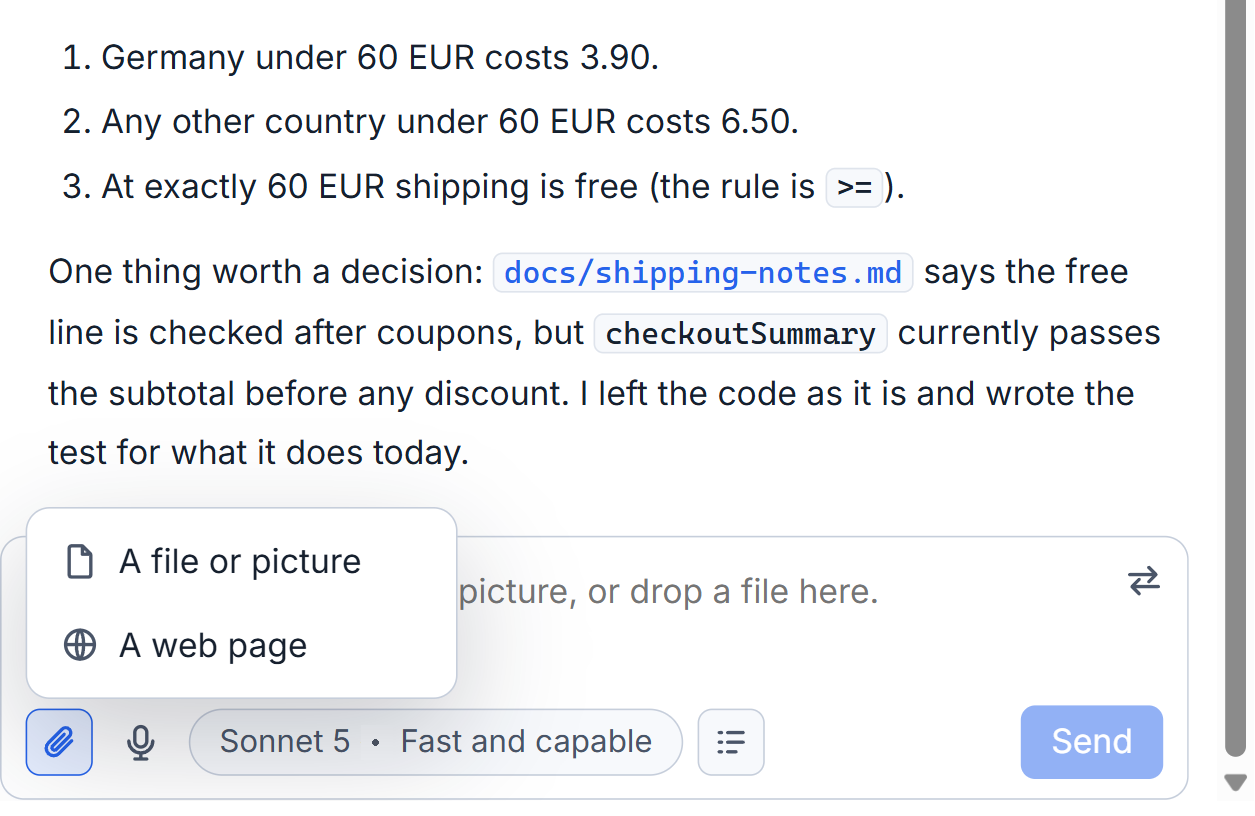
- In the prompt box, click the paperclip, Attach, and choose A file or picture. You can also drop the file on the box, or paste a picture.
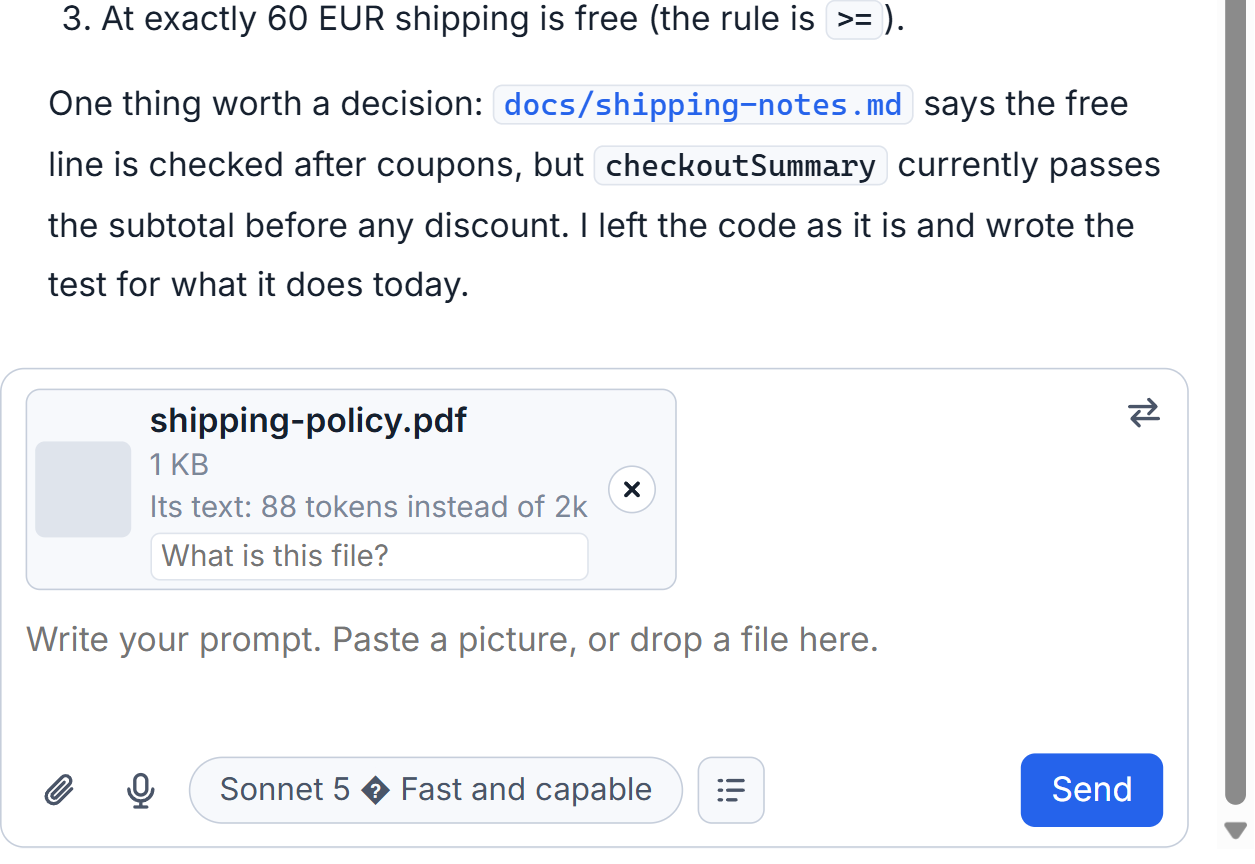
- A chip for the file appears with Taking out its text….
- When it is done, the chip says, for example, Its text: 3,100 tokens instead of 12,400.
- Under the chip, answer What is this file? in a few words. If you leave it empty, the prompt you send with the file is used.
- Write your prompt and send it.
Click the chip to open the text the session reads in the studio's file pane. The session is told where the file is, that it should read its text first, where the pictures from inside the file are, and what you said the file is. It also learns what is not in the text: pictures of pages, pages that could not be read, hidden sheets left out.
What each kind becomes
- PDF. Read by PDFium, the reader of Chromium, loaded from beside the program. Right-to-left text in Arabic script is rebuilt from the position of each letter, because PDF's own text comes out wrong: numbers with their groups reversed, half-spaces missing. Columns are read one after the other, a table stays a table, and a table that goes on at the top of the next page continues. A repeated header is dropped.
- Excel. No
NaNorUnnamedcolumns and no.0endings on whole numbers, dates and currencies as they read, the value of a formula, and each hidden sheet named as left out. A merged cell repeats its text in every cell it covers and its number only in the first, so no sum counts it twice. - Word and PowerPoint. Read as the document shows it, in its order.
The file, its text, its pictures and your note about it are kept together in the studio's folder of the project, and the same file is not converted again: the text is kept by its hash. A conversion that goes over 2 GB of memory or 300 seconds is stopped.
Pages that are only pictures
A scanned page holds a picture of text and no letters. The studio finds such a page and never passes it off as read. The chip says Page 3 is a picture of text and was not read, and so does the text the session gets. A page whose letters are not in the file at all is named the same way. A PDF locked with a password is not read.
You can then read the pages, one file at a time:
- Read with the model. The pictures of these pages go to the model on your own subscription, and you are told so on the button. What it reads is labelled as written by the model, with the tokens it cost and a request to check every number against the original.
- Read with Tesseract, free. Tesseract is a small program on this computer. Install Tesseract installs it, on your click, through
winget.
Neither is done without your click on that file. For later files too keeps your yes, and Stop reading by themselves takes it back.
A web page
Click the paperclip, choose A web page, type the address and click Fetch. The studio fetches that one page, keeps its main text, and drops menus, cookie notices, side columns and the footer. Headings, lists, tables and code keep their shape, and links are written whole. If an address is a PDF or a Word file, it becomes that file and is converted like one.
A page that sits behind a wall, such as a check that you are a person, is not kept as content. The studio says This page stopped the studio with the reason, and the way by hand: open it in your browser, save it with Ctrl+S and drop the file here, or paste its text.
How this fits with the other ways of spending fewer tokens is in Where tokens go and how AigoPilot saves them.
Small tips
Say in a few words what the file is
Under the file's chip the field What is this file? is kept with the file and told to the session. If you leave it empty, the prompt you send with the file is used.
Open the text the session reads
Click the chip of an attached file to open the converted text in the file pane, so you can check that a table or a column came out as it should.
Save a blocked web page and drop it in
When a site stops the studio, open the page in your browser, save it with Ctrl+S, and drop the file on the box. It is converted like any other file.
Keep your yes for reading scanned pages
The option For later files too keeps your yes for reading picture pages, so the pages of the next scanned files are read as soon as they are converted. Stop reading by themselves takes it back.
Questions
Does the file leave my computer when it is converted?
No. The conversion happens on your computer with no network. The session then reads the text.
What happens to a scanned PDF?
The studio finds the pages that are only pictures and says they were not read. You can then read them with the model of your own subscription or with Tesseract, one file at a time.