
Slash commands
The tool's own commands, asked of the tool in your project's folder, listed as you type.
Type / at the start of an empty prompt box and the studio lists the slash commands of the tool, the same ones you would see in a terminal. It saves you from remembering what a plugin or a project command is called, and it works for Claude Code and for Grok.
A Codex session shows no such list, because the way the studio runs Codex takes no slash commands.
Use the list
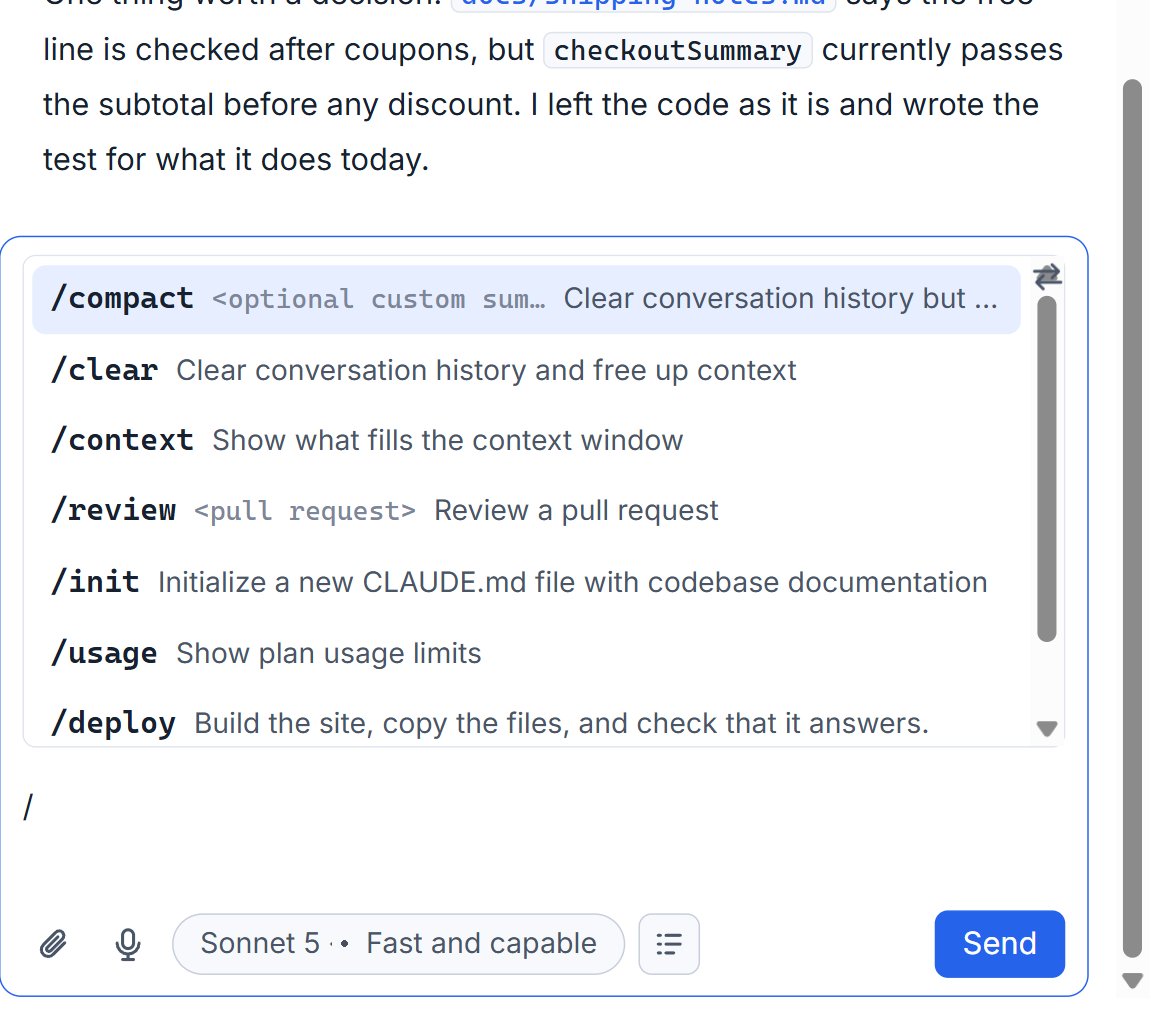
- Click in the prompt box and type /.
- Type a few letters of the name. Commands that start with them come first, then commands that contain them. At most eight are shown.
- Move with ↑ and ↓.
- Press Enter or Tab to take the marked one. The box now holds
/nameand a space. - Add what the command takes, if anything, and send as usual.
Each row shows the name, a hint of the arguments it takes, and one line of what it does. Esc puts the list away. A command is sent to the session as an ordinary prompt that begins with a slash, for example /compact keep the plan, so it goes through the same line as any other prompt.
Where the list comes from
The studio asks the tool itself, in the folder of the project and with the project's account. The answer holds the tool's built-in commands, the commands of your plugins (written with the plugin's name before a colon, like seo:audit), the project's own commands and skills, and your own. So two projects can show different lists.
Nothing is spent for this. No model is called and no session is begun to ask; on the maker's own PC the first asking listed 171 commands in under two seconds. The list is kept for ten minutes, then asked again. A project folder the studio does not know is not asked at all.
What runs and what does not
A command is sent to the session; what happens next is the tool's own business. Two are followed by the studio so the page stays right:
/compactsums up the conversation and the session goes on. The conversation says it went from so many tokens to so many./clearputs the conversation away and begins a new one in the same program. The studio follows it: the old session stays in the list with all its messages, and the page moves to the new one.
The list is whatever the tool offers where there is a terminal. Which of those commands the tool refuses when there is no terminal, as in a session the studio runs, was not checked for every command.
Compacting is also offered as a button when a conversation outgrows the window: see the context bar. For the row under the box, see the prompt box.
Small tips
Type part of a name, not the start
Names that start with your letters come first, but names that only contain them are listed too. Typing /audit finds a command called seo:audit.
Let the page follow /clear
After /clear the tool holds a new conversation. The studio moves you to it and keeps the earlier session in the list with all its messages.
Questions
Do slash commands work in Codex sessions?
The list is empty for Codex, because the way the studio runs Codex takes no slash commands.
Does listing the commands cost anything?
No. The studio asks the tool for its list without a prompt and without calling a model. The answer is kept for ten minutes.