
Searching every conversation
The search box looks inside the conversations, so one word you remember is enough to find a session.
The search box in the middle of the title bar looks inside the conversations themselves, as well as at their names. If you remember that a session dealt with a login bug or a Stripe webhook but not what you called it, type a word from it and the studio lists the sessions where that word was said, by you or by the tool.
The search runs on an index the studio keeps in its own data folder, on your computer. It makes no network request, and it is built as sessions are read, so it is ready as soon as the project list is.

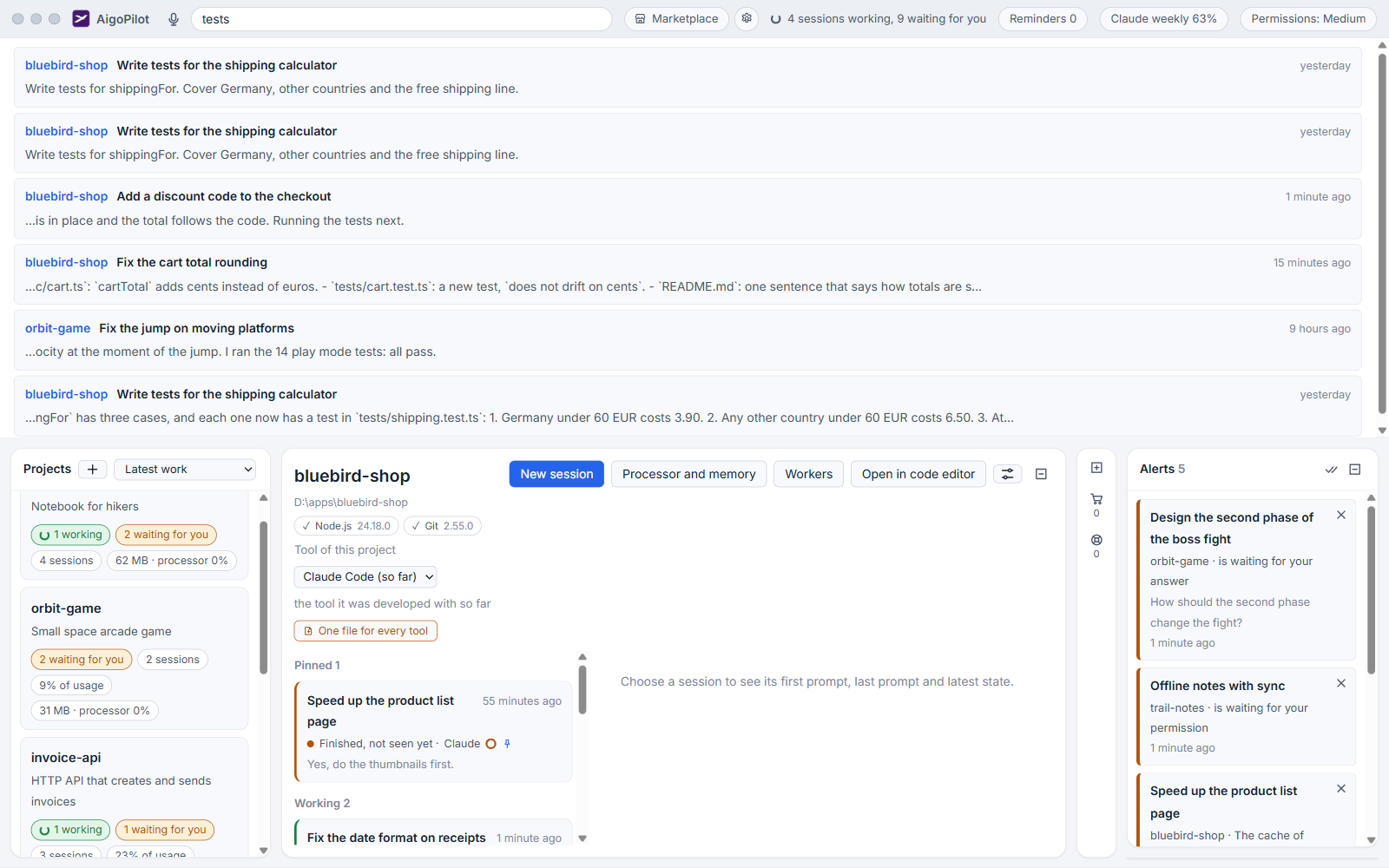
Search
- Click the box that says Search all sessions.
- Type at least two characters. Results appear as you type, after a short pause, over the columns.
- Click a result. The studio opens that project and that session and clears the box.
Press Esc to empty the box and close the results. Each result shows the project, the session's title, when it was written and a short stretch of the matching text.
If nothing matches, the studio says Nothing found and how many sessions it looked in.
How a query is read
- Every word you type must appear in the same message, in any order.
- Each word matches the beginning of a word. deploy finds "deploy" and "deployment". It does not find a word that merely contains it in the middle.
- Capital letters do not matter.
- Punctuation separates words.
package.jsonis read as package and json, and a file name with an underscore becomes two words.
Names come first. A session whose name contains what you typed, exactly as typed, is listed ahead of the message matches, because a name you chose is the strongest sign of what you want. At most 60 results are shown, so a very common word fills the list with its first matches; add a second word to narrow it.
What it covers
It covers what you and the tool wrote in the conversation, in every project of the computer you are sitting at: archived sessions, sessions you started in VS Code or a terminal, and sessions made by programs. It does not look inside the files a session edited.
Find a session by describing it
When you do not remember any exact word, speak or type a description to the voice assistant, the microphone on the left of the search box. It asks your own Claude Code, Codex or Grok to work out several searches, runs them over the same index, and offers the best sessions with a reason for each. The voice assistant describes it. It needs voice typing to be set up for speaking, but you can type into its box.
Small habits that help
Search for your own words first. Your prompts are short and specific, while an answer repeats common words. Two or three unusual words beat one common one. If you rename sessions as you go, as in Rename, pin and archive sessions, the name search finds them without any of this.
Small tips
Type only the start of a word
Each word matches the beginning of words, so deploy finds deployment and deployed. Typing less often finds more.
Search with words you wrote, not words it wrote
Your prompts are short and specific, while answers repeat common words. Two unusual words from your own prompt find a session faster than one common word.
Press Esc to clear the search
Esc empties the box and closes the results at once, so you are back on the page you were on.
Name sessions so the search lists them first
A session whose name contains what you typed is listed ahead of the message matches. A clear name is the cheapest search aid there is.
Questions
Does the search work for sessions on my other computers?
No. It uses the index of the computer the studio window runs on. To look through another computer's sessions, open its project and use that project's list.
Why does a word I typed find nothing?
Every word you type has to appear in the same message, and each one matches the beginning of a word. Remove a word, or type its first letters instead of its middle.