
The voice assistant: find and open sessions by speaking
Say what the work was, not what the session was called, and the assistant finds it.
The voice assistant moves around the studio when you tell it where to go. You say "open the session where we set up the Stripe payments", and it works out which of your many sessions that was and opens it. You can also ask which sessions are waiting for you, have the last answer of the open session read aloud, or ask for a new project. It is a way to find things, not a way to give orders to your sessions.
Its main use is the one a search box cannot manage: you remember what you did but not a single word that was said. The assistant turns your description into several searches, looks, and picks.
Partly built. The assistant works and was tried with real sessions in typed form, but we have not tuned the hands-free mode on real voices, so expect it to cut you off or wait too long at first. Typing into its box always works.
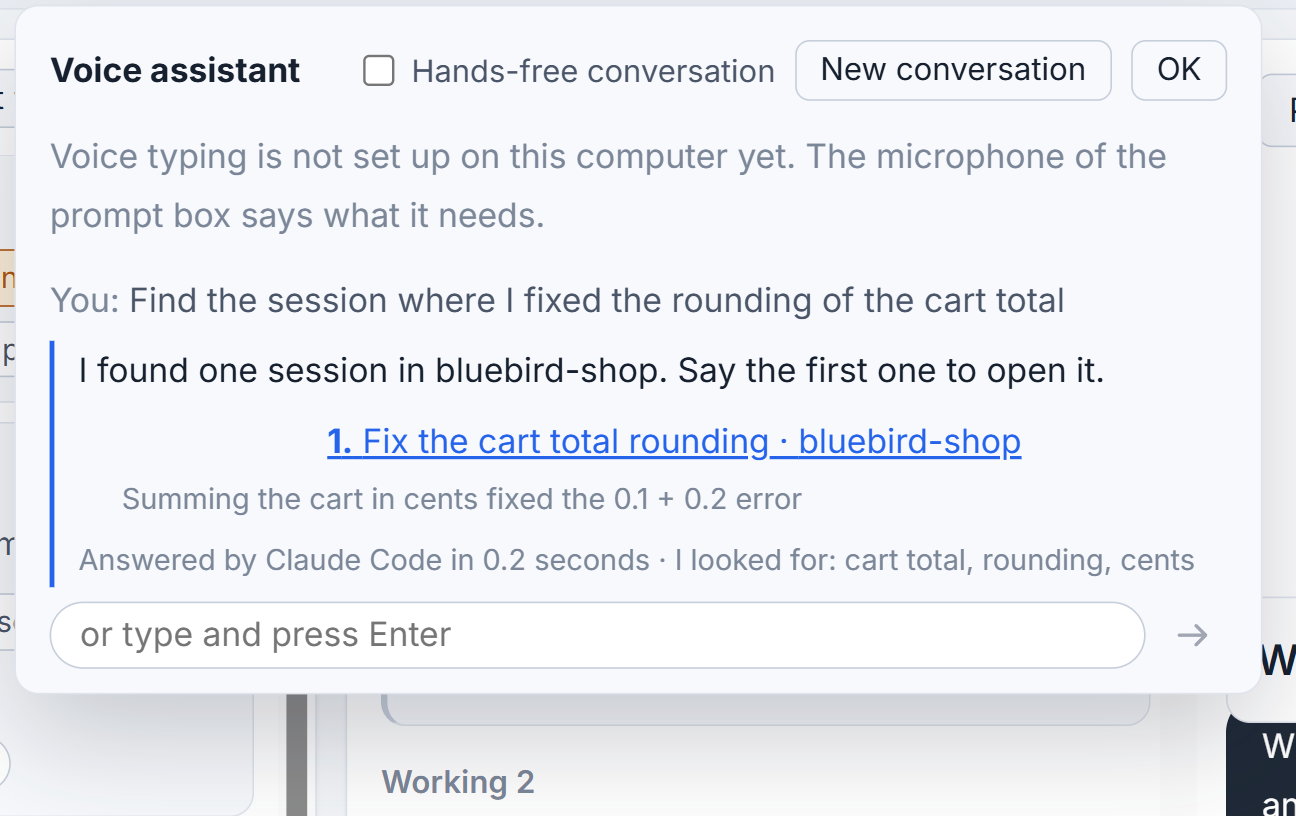
Ask it something
The assistant listens through the same microphone and engine as voice typing, so set that up first. See Voice typing in the prompt box.
- Click the microphone at the left of the search box in the title bar. The Voice assistant panel opens and starts listening.
- Say what you want, for example "open the session where we set up Stripe payments" or "which sessions are waiting?"
- Click the microphone again, now titled Done speaking. The panel shows what it heard, then Thinking… and the searches it runs.
You can type instead: the box at the bottom says or type and press Enter. A typed question works even when voice typing is not set up.
When it is sure which session you mean, it opens it. When it is not, it lists up to three, each with a short reason, and you click the one you want. A word such as "the second" in your next sentence picks from that list. Under each answer a small line says which tool answered, how many seconds it took, and what it searched for, so you can see why it chose as it did.
What it can do
- Open a project by name, or a session by what was done in it.
- Tell you how many sessions wait for you, and list them. Click one to go there.
- Read the last answer of the session you have open, aloud.
- Propose a new project. It shows the folder it would use and asks Make the new project here? Nothing is made until you press Make it.
- End the conversation when you say "that's all".
It never writes into a session, never answers a permission and never sends anything. It only moves the page and proposes. It knows the projects and sessions of the computer the studio window is on.
Hands-free
Tick Hands-free conversation in the panel and it listens again after each answer. A turn ends by itself about a second and a half after you stop talking, or after eight seconds of silence. Say nothing, or say "that's all", and the conversation ends. New conversation clears the panel.
Who understands you, and who speaks
The understanding is done by one of your own tools, on your own subscription: Claude Code, else Codex, else Grok, in that order. In Settings, under Writing and sending, Who understands you lets you put one first; the others answer when it cannot. A question that needs a search takes two calls. If none of them answers, the assistant falls back to fixed sentences, which can open a project or a session, say what waits, or read the last answer, and the panel says so.
In our own trials the same sentence took about ten seconds with Claude Code, about sixteen with Codex and about ninety with Grok, which reads a lot before every question.
The assistant's answers can be Spoken and written or Written only. Speaking uses OpenAI's voice with the same key as speech to text, so it needs Speech to text set to OpenAI with credit in the key; without that the answers are written, or read in a voice Windows has for your language if it has one. If the OpenAI credit runs out, voice typing falls back to the local engine and the answers are only written until you charge it again.
Small tips
Type to the assistant when you cannot talk
The box at the bottom of the panel takes a typed request and Enter. It works even if voice typing is not set up.
Pick from its list by saying which one
When it offers up to three sessions with a reason each, say or type the second, and it opens that one. The last few turns stay in its memory until you press New conversation.
Put the tool you trust first
Settings, Writing and sending, Who understands you, lets you choose Claude Code, Codex or Grok first. The others answer when it cannot.
Turn the spoken answers off
The assistant's answers can be Written only. Then it never speaks, and the line under each answer still shows which tool answered and what it searched for.
Questions
Which AI tool understands what I say to the assistant?
One of yours: Claude Code first, then Codex, then Grok, on your own subscription. In Settings you can put one first. If none answers, fixed sentences handle the simple requests.
Can the assistant answer a permission or send a prompt for me?
No. It only moves the page: it opens projects and sessions, lists what waits, reads an answer aloud and proposes a new project, which you confirm with a click.